
How to Deactivate Instagram: Steps and Duration for 2026
Learn how to deactivate Instagram in 2026 with simple steps. Learn how long it lasts and how to reactivate your account at any time.
Justin| 23 May 2025
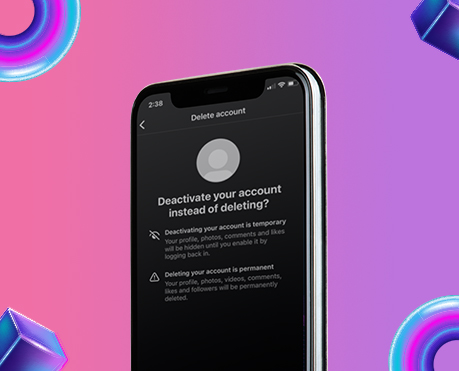
Instagram is still a huge entity in the social media space. It attracts users with many interactive features. However, the attraction can be overwhelming. As a result, exercise is postponed. Luckily, users have the option to temporarily leave and deactivate your Instagram account to regain focus. But exactly how long can their Instagram account be deactivated?
Starting with a digital journey that delves into the intricacies of deactivating Instagram, how long does it take to remain inactive? and shed light on the simple steps. In action!
How to deactivate Instagram and how long you can keep it deactivated
The burning question for many is how long can Instagram disappear? Luckily, Instagram doesn’t limit how long an account can be unavailable. Users are free to remain off the platform indefinitely, with Instagram keeping all data.
This ensures that whenever users feel ready to return, Their accounts will be complete and complete. Waiting for activation again Without losing stored data.
Whether you choose a short or extended stay Your account will be yours when you decide to return.
Related Blog: Why Am I Losing Instagram Followers
Steps on How to Deactivate a Instagram Account
Let’s explore how to disable an Instagram account, how long it can stay inactive, and the simple steps to do it easily. Whether you’re using a mobile device or a desktop, the method is user-friendly.
How to Deactivate Instagram on Android and iPhone
Taking a break from Instagram? Whether you’re looking to unplug or just take some time off, here’s how you can easily deactivate your account temporarily
Steps to Deactivate Your Instagram Account on Android Devices
- Launch the Instagram app on your Android phone and log in.
- Select your profile icon from the bottom-right of the screen.
- Select the three-dot menu button in the top-right of the screen.
- Choose Settings.
- Scroll down to Help → Help Centre to open a new window in your browser (you may need to log in again).
- Then, search “How Do I Disable My Instagram Account Temporarily”.
- Choose “Temporarily Disabling Your Instagram Account” from the results.
- Select a reason for disabling your account and enter your password again.
- Select Temporarily Disable Account.
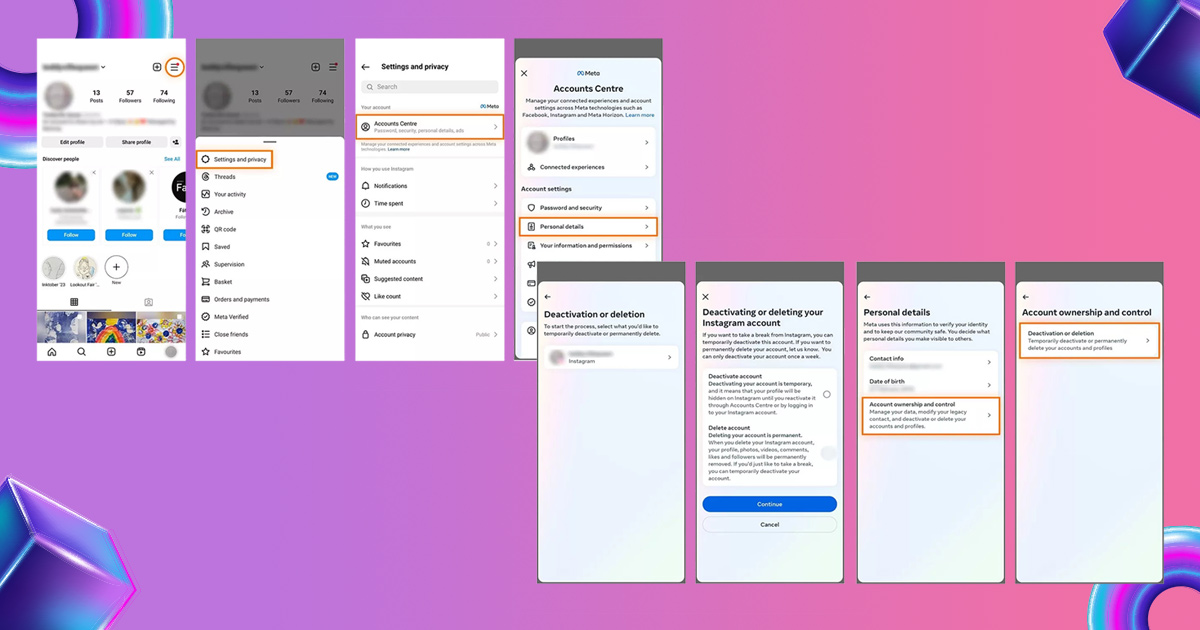
Steps to Deactivate Your Instagram Account on an iPhone
- Tap your account picture in the bottom right corner
- Tap on the three-line menu in the upper-right corner
- Scroll to the bottom and select Help → Help Center
- Search “deactivate account” in the browser
- Follow the directions in the browser
- Select your reason for disabling your account, enter your password, and confirm
- Tap Temporarily Disable Account to deactivate your account
Steps to Deactivate on PC or Mac
For those who prefer the bigger screen, deactivating via a web browser is just as easy:
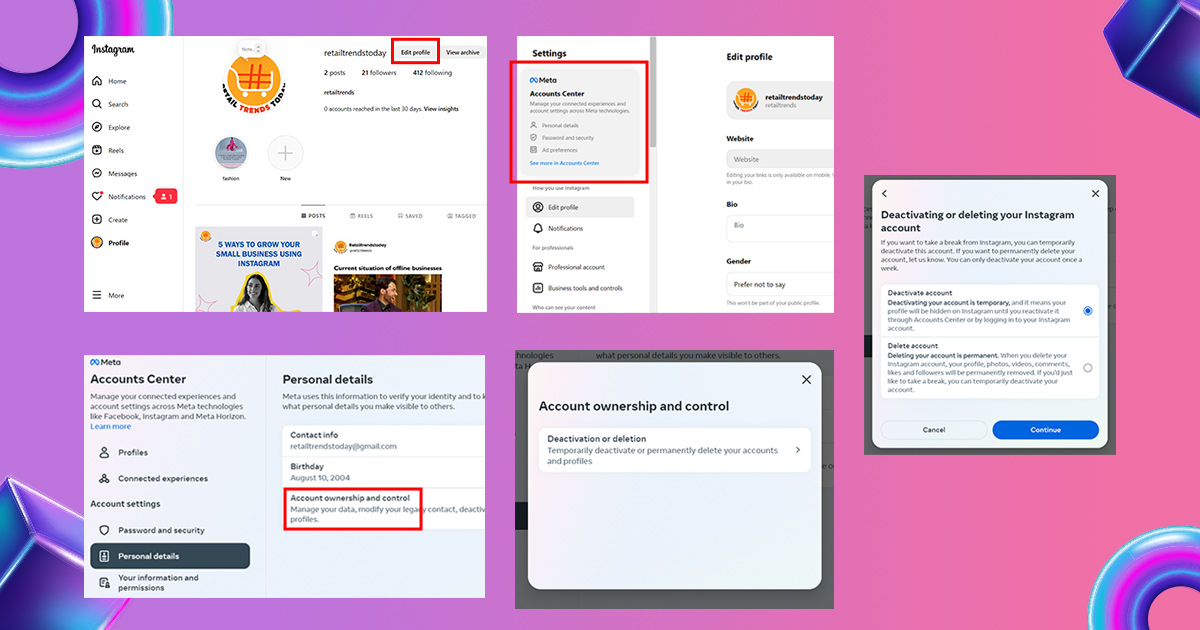
- Open your preferred browser and visit instagram.com.
- Sign in to your account.
- Click your profile icon in the top right.
- Select the gear icon adjacent to “Edit Profile” and open “Settings”.
- In the left-hand menu, click “Account Center”and open “Personal Details”.
- Scroll down to find “Temporarily Disable My Account.”
- Choose your reason from the dropdown.
- Re-enter your password to confirm.
- Hit “Temporarily Disable Account” to complete the deactivation.
What Happens When You Deactivate Your Instagram Account?
When you temporarily deactivate your Instagram account, your profile, posts, comments, and likes will no longer be visible to others. Everything is safely stored and will be restored once you log back into your account.
Keep in mind that Instagram only allows you to deactivate your account once every week.
Looking to deactivate other social media accounts as well? You can refer to our guide on how to deactivate or delete Facebook on your iPhone or Android device.
How to Reactivate Your Instagram Account
Reawakening your Instagram account is equally simple. If you’ve deactivated your profile and wish to return to the vibrant social media landscape, here’s what you need to do:
- Open the Instagram app or go to instagram.com.
- Input your username and password.
- Press “Log In,” and then, your account will be reactivated.
Why Deactivate Instagram?
Knowing the mechanism of deactivating and reactivating your account. It is important to find out why users are choosing to retreat from Instagram.
1. Privacy Concerns
Full of personal information Many social media users are concerned about their privacy. Deactivating Instagram gives you the opportunity to protect your personal details and regain control of your online presence.
2. Digital detox
In a world filled with daily information A digital break can be refreshing. Closing it hides your profile and allows users to step away from endless scrolling and focus on more tangible life experiences.
3. Reduce unnecessary distractions
Although Instagram is a source of entertainment, sometimes it can interfere with performance. Turning this feature off will eliminate the temptation to check your feed endlessly. This results in more time for useful activities and can improve your mental health.
4. Data security
Due to concerns about a possible data breach To protect their data, some users take proactive steps. Temporarily deleting your account or disabling your Instagram account provides a buffer against unauthorized access and enhances data security.
Related blog : Funny Comments on Instagram
Conclusion
In summary, Instagram gives users the freedom to deactivate their account for as long as they want. This makes it a good option for those who want to disconnect from the platform without sacrificing content or account information. It’s time for an influencer or business to rethink and create a new content strategy. Before this break creates strong returns.
When you come back Do you want to improve your Instagram strategy? Storefries offers a comprehensive set of tools to easily manage your social presence. From scheduling posts to analyzing performance, Storefries helps you up your Instagram game.





Leave A Comment