
How to Unblock Someone on Snapchat: Easy Steps 2026
Learn the simple steps to unblock someone on Snapchat in 2026. Follow this guide to reconnect with friends quickly.
Kasthuri| 15 Nov 2025
Table of Content
- Do more with Storefries!
- What Happens When You Block and Unblock on Snapchat?
- Why Do You Want to Unblock Someone?
- Important Things to Know Before Unblocking Someone on Snapchat
- How to Unblock Someone on Snapchat: Step-by-Step Guide
- How to Add an Unblocked User Back on Snapchat
- Troubleshooting Common Issues with Unblocking on Snapchat
- Alternatives to Blocking on Snapchat
- Tips to Manage Your Snapchat Privacy
- Conclusion
- Frequently Asked Questions
- Related Posts
- Leave A Comment Cancel reply
Did you block someone on Snapchat and now wish you hadn’t? Maybe it happened during an angry moment, or maybe you’re ready to move on and talk again. If you’re unsure how to unblock someone on Snapchat, you’re not alone. Many people find Snapchat’s settings a bit confusing, especially if they don’t use the app every day. The idea of reconnecting with a friend, seeing old chats again, or fixing a small misunderstanding can feel important.
how to unblock someone on Snapchat
This simple guide explains how to unblock someone on Snapchat in an easy, step-by-step way. Even if you are new to the app, you’ll be able to follow along without trouble. You’ll get clear steps, useful tips, answers to common questions, and basic advice to keep your account private. Keep reading to learn everything you need, without confusion or hard words.
What Happens When You Block and Unblock on Snapchat?
Blocking someone on Snapchat is not just about stopping their messages. When you block a person, they lose full access to your account. They cannot see your Snaps, Stories, or profile information. They are unable to send you messages, check your location, or interact with you in any way. If that person was on your friends list, Snapchat removes them completely, and the friendship is erased from the app.
When you unblock someone, a few things change—but everything does not return to normal right away. Unblocking allows the person to find your profile again, send messages, and view any public Snaps or Stories you share. However, Snapchat does not automatically add them back as your friend. If you want them on your friends list again, you must send a new friend request or accept theirs. Any old chats or messages from before the block will still be deleted unless they were saved earlier.
Snapchat does not send any alert or message when you unblock someone. The other person will not be told directly. Still, they might realize it if they are suddenly able to search for your name or send you a friend request. If you want to talk again, both sides must re-add each other before chatting can begin.
Why Do You Want to Unblock Someone?
People block others on Snapchat for many reasons. Sometimes it happens after a small argument, a bigger fight, or when someone just needs a break. You might have tapped “block” while feeling upset or used it to avoid uncomfortable messages. As time goes by, emotions can calm down, and you may start thinking about talking again.
You may want to unblock someone on Snapchat to fix past issues, reconnect with a family member, or start chatting with a friend again. People grow, say sorry, and change. At times, you might notice you blocked the wrong person, or a group chat feels incomplete without everyone. No matter the reason, Snapchat always gives you the choice to unblock.
Unblocking someone is fully up to you, and there’s no need to stress. Snapchat does not send any notice to the other person when you unblock them. If you’re worried about your privacy or unsure about your decision, you stay in control. And if things don’t go well, you can always block or change your settings again.
Important Things to Know Before Unblocking Someone on Snapchat
Before you go ahead and unblock someone on Snapchat, there are a few key points you should understand. Knowing these details can help you avoid confusion and keep your privacy safe.
- Friend Status:
Unblocking someone does not add them back to your friends list. You must send them a new friend request, and they need to accept it before you can chat or send Snaps like before. - Chat history:
When you block a person, most chats and shared photos disappear for both of you. Only messages that were saved earlier may still be there. Unblocking will not bring back deleted conversations. - They Will Not Get a Notification:
Snapchat does not alert someone when you unblock them. They may only notice if they search for your username or try to add you again. - Check Your Privacy Settings:
After unblocking, it’s a good idea to review your privacy settings. You can control who sees your Stories, who can message you, and who can view your location under the “Privacy Controls” section. - Think About Why You’re Unblocking:
Take a moment to decide if reconnecting feels right for you. Unblocking is easy, but your comfort matters most. You are not required to add someone back if you’re not ready.
How to Unblock Someone on Snapchat: Step-by-Step Guide
You don’t need to worry about which phone you’re using. These steps work the same on both iPhone and Android. Follow the guide below to unblock someone on Snapchat easily.
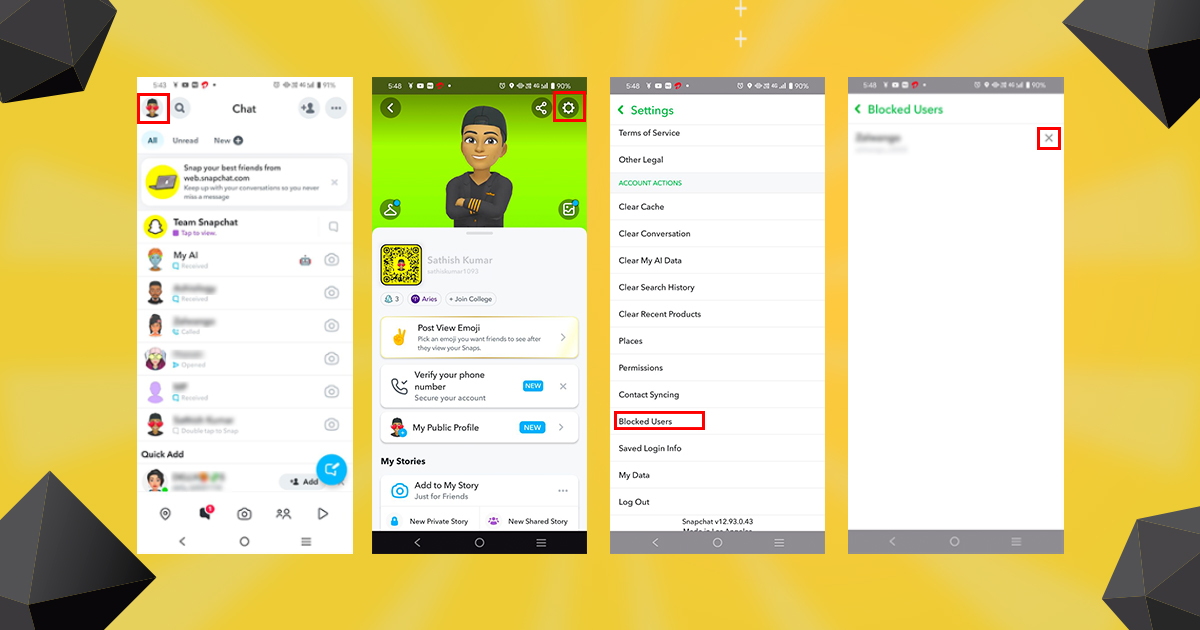
1. Open Snapchat & Access Your Profile
- Open the Snapchat App: Launch the Snapchat app on your phone. Make sure you are logged into the account where you blocked the person.
- Go to the Camera Screen: When Snapchat opens, you’ll see the camera screen first.
- Tap Your Profile Icon: In the top-left corner, tap your Bitmoji or profile icon.
- Check the Account: If you have more than one Snapchat account, confirm you’re using the correct one.
- View Your Profile Page: Your profile page will show your Snapcode, name, and settings options.
2. Enter Settings
- Find the Settings Icon: On your profile page, look for the small gear icon in the top-right corner.
- Tap the Gear Icon: This opens the Snapchat settings menu.
- Scroll Down Slowly: Scroll until you find the section called Privacy Controls.
- Stay Focused: Ignore options like Bitmoji, notifications, or payments and keep scrolling to the right section.
3. Find and Tap “Blocked Users”
- Look for “Blocked Users”: Under Privacy Controls, you will see Blocked Users. On some phones, it may appear under account-related options.
- Tap “Blocked Users”: This opens the list of people you have blocked.
- Browse the List: Scroll through the usernames to find the person you want to unblock.
- Check Carefully: Make sure the username is correct before moving ahead.
- Missing Name?: If you don’t see the person, they may have deleted their account or changed their username.
4. Unblock the User
- Find the Right Person: Locate the user you want to unblock from the list.
- Tap the “X” Icon: Tap the small “X” next to their name.
- Read the Message: Snapchat will ask if you are sure about unblocking.
- Confirm Your Choice: Tap Yes to unblock the person.
- What Happens Next: The user can now find your profile, see public Stories, and send you a friend request. They will not get any notification.
5. Confirm Unblocking
- Check the Blocked List Again: Go back and make sure the name is no longer listed.
- Search the Username: Use the search bar to look for their profile.
- Send a Friend Request: If you want to reconnect, tap Add and wait for them to accept.
- Review Privacy Settings: Check your privacy options if you want to control what the unblocked person can see.
This step-by-step method helps you unblock someone safely while keeping full control of your Snapchat account.
How to Add an Unblocked User Back on Snapchat
After unblocking someone, you’ll need to add them again to start chatting or sending Snaps. Follow these simple steps:
Steps to Add an Unblocked User
- Open Snapchat’s Search Bar:
Go to the main camera screen and tap the search icon (magnifying glass) at the top of the screen. - Type Their Name or Username:
Enter the exact username or display name of the person you just unblocked. If their account is public, their profile should appear in the search results. - Tap “Add” on Their Profile:
When you see their profile, tap the yellow Add button. This sends them a friend request. - Wait for Them to Accept:
If their account is private, they must accept your request before you become friends again. - Start Chatting or Sending Snaps:
Once your request is accepted, you can send messages, Snaps, and interact like before. Keep in mind that old chats will not return, except for messages that were saved earlier.
Good to Know
- If you don’t see their profile right after unblocking, wait a few hours. Snapchat may need time to update.
- If the other person has blocked you, you won’t be able to add them until they unblock you from their side.
These steps help you safely reconnect while keeping your Snapchat experience smooth and stress-free.
Troubleshooting Common Issues with Unblocking on Snapchat
Sometimes unblocking someone doesn’t go as smoothly as expected. Here are some common problems users face and how to solve them.
1. User not found after unblocking
If someone you blocked doesn’t appear in your friend search, possible that they blocked you as well. In such a case you may not be able to contact them unless they eventually block you.
2. Unable to add users back as friends
Sometimes Snapchat can prevent you from unblocking someone and adding them right away. This may be due to a temporary synchronization issue. Wait a few minutes, restart the app, and try adding it again. Or check your internet connection or log out and try logging back into Snapchat.
3. The blocked list is not updated
If your Blocked list doesn’t update after unblocking someone, sure you’re using the latest version of the Snapchat app. Older versions of the app can cause errors.
Alternatives to Blocking on Snapchat
Blocking is a strong function, and in some cases, you may need other options to manage interactions with certain users on Snapchat. Here are some alternative actions you can consider.
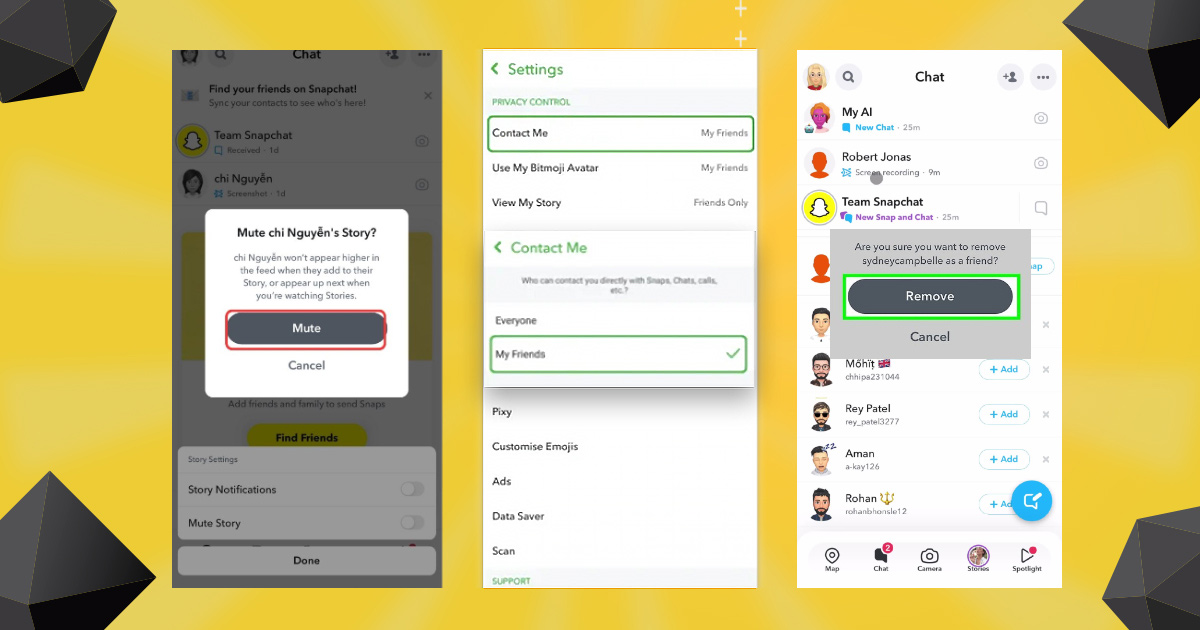
1. Mute their stories
If you want to view someone’s stories but don’t want to block them completely, you can mute that person’s story. This option will keep their content out of your view without them knowing.
2. Limit who can contact you
Adjusting your privacy settings
gives you control over who can contact you. Go to Settings > Privacy. and adjust settings and “Who can view my stories” to limit interactions with specific people.
3. Delete friends
If you don’t want someone on your friends list but don’t feel the need to block them, block them. You can remove them as friends. This action prevents them from seeing your stories and messaging you unless you add them back.
Related Blog: Snapchat Bio Ideas
Tips to Manage Your Snapchat Privacy
Maintaining a comfortable level of privacy on Snapchat can enhance your experience on the platform. Here are some additional privacy tips:
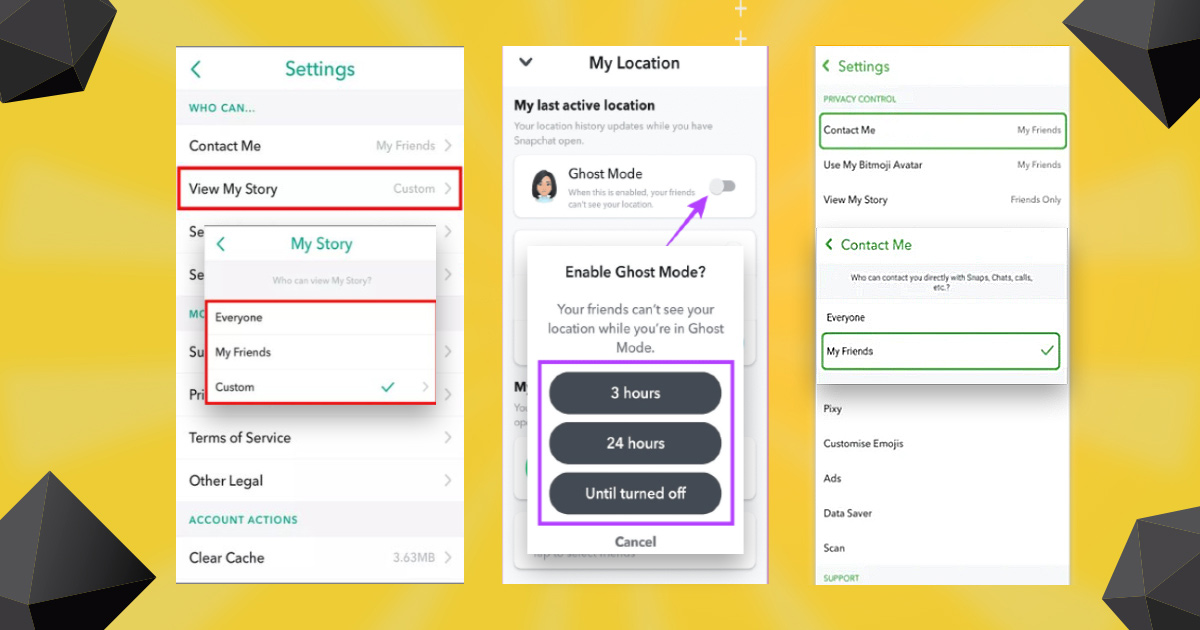
1. Adjust Story Privacy: Go to Settings > View My Story and select ‘Friends Only’ or ‘Custom’ to control who can see your stories.
2. Ghost Mode on Snap Map: If you don’t want to share your location, turn on Ghost Mode on Snap Map, ensuring others can’t see where you are.
3. Message Settings: Customize who can contact you by changing your settings under Settings > Contact Me to limit messages to your friends only.
Conclusion
By following these clear and simple steps, you can easily manage your block list on Snapchat and control who can interact with you on the platform. Snapchat’s privacy features are designed to give you full control over your social interactions, so don’t hesitate to customize them as needed.
Frequently Asked Questions
1. Can Someone Tell If I’ve Unblocked Them on Snapchat?
No, Snapchat doesn’t notify users when they’ve been unblocked. They’ll only notice if they attempt to send you a message or add you as a friend.
2. Will Unblocking Someone Restore Our Chat History?
Unblocking doesn’t automatically restore previous chat history or sent snaps. Only saved messages will remain visible.
3. Can I Re-block a User After Unblocking Them?
Yes, you can re-block someone at any time. Follow the same steps above to locate them in your friends list, then select ‘Block’ to add them back to the blocked list.



Leave A Comment