
How to Block Someone on TikTok: Step-by-Step Guide (2026)
Learn how to block someone on TikTok from a profile, comment, or DM, block multiple people at once, and unblock, restrict, or report instead.
Ashore| 01 Oct 2026

With 120.5 million monthly active users in the U.S., TikTok remains a major social media platform, sparking creativity and connection through imaginative videos.
However, not all interactions are positive, so knowing how to stay calm and in control of your account matters just as much as posting good content. Whether you’re dealing with spam, harassment, or someone you’d simply rather not interact with, blocking people on TikTok is one of the most effective tools you have.
Curating your digital space on TikTok means choosing what content and voices you want to engage with. While most interactions are fun, there may be times when blocking someone is necessary. Whether for safety or filtering uncomfortable content, blocking is simple. This guide walks you through every way to block someone on TikTok in 2026, what happens after you block them, how to unblock someone, and when restricting or reporting makes more sense than an outright block.
What Happens When You Block Someone on TikTok
TikTok’s blocking feature acts as a digital barrier between you and another account. Once you block someone, they can no longer interact with you in any form. Here’s exactly what changes:
- Direct messaging: The blocked user can no longer send you DMs, so any unwanted or inappropriate messages stop immediately.
- Comments: Any new comments from the blocked user won’t appear on your videos, and they won’t be able to leave new ones. Existing comments they already left may still be visible to others, which the steps below cover.
- Profile and content access: Blocked users can’t view your profile, your follower or following lists, or any videos you post. Your content is completely hidden from their perspective.
- Discovery: Blocked users won’t be able to find your account through search, and TikTok’s algorithm stops recommending your profile to them.
- Notifications: TikTok doesn’t notify the blocked user about your activity on the platform, which cuts off their visibility into what you post.
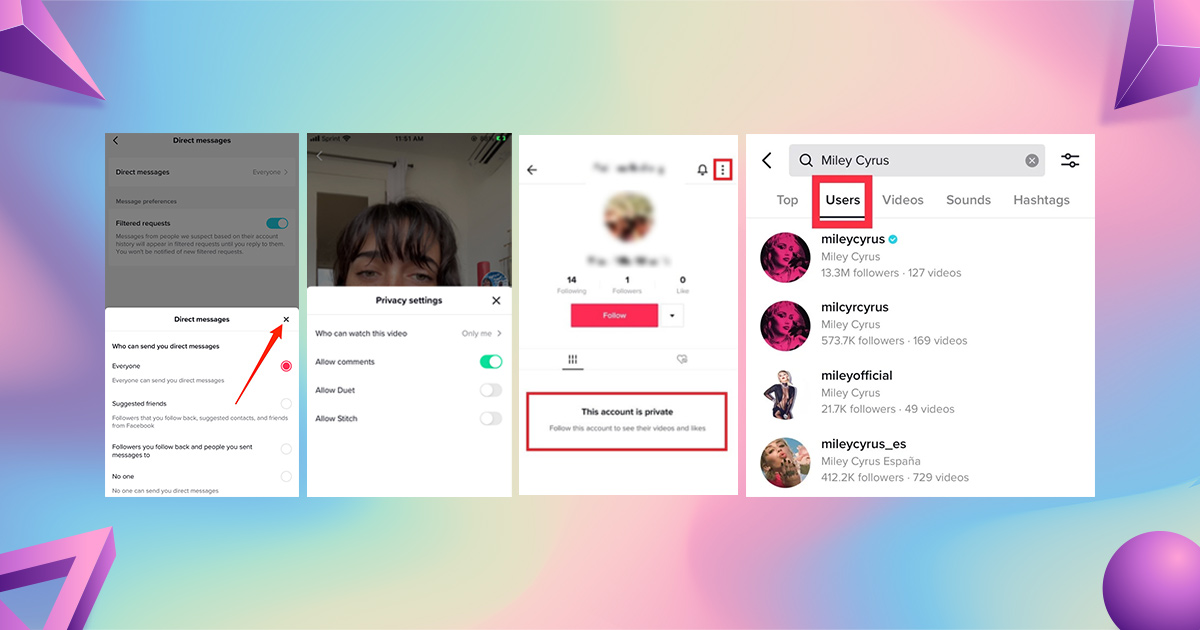
By using the blocking feature, you reclaim control over who engages with you on the platform. Whether you’re fending off trolls or just preserving the quality of your interactions, it’s one of the most effective tools for managing your TikTok experience.
How to Block Someone on TikTok (Step-by-Step)
You can block people on TikTok from their profile, from a comment, from a direct message, or from the desktop site. The quickest method depends on where the unwanted interaction is happening.
Method 1: Block Someone From Their Profile
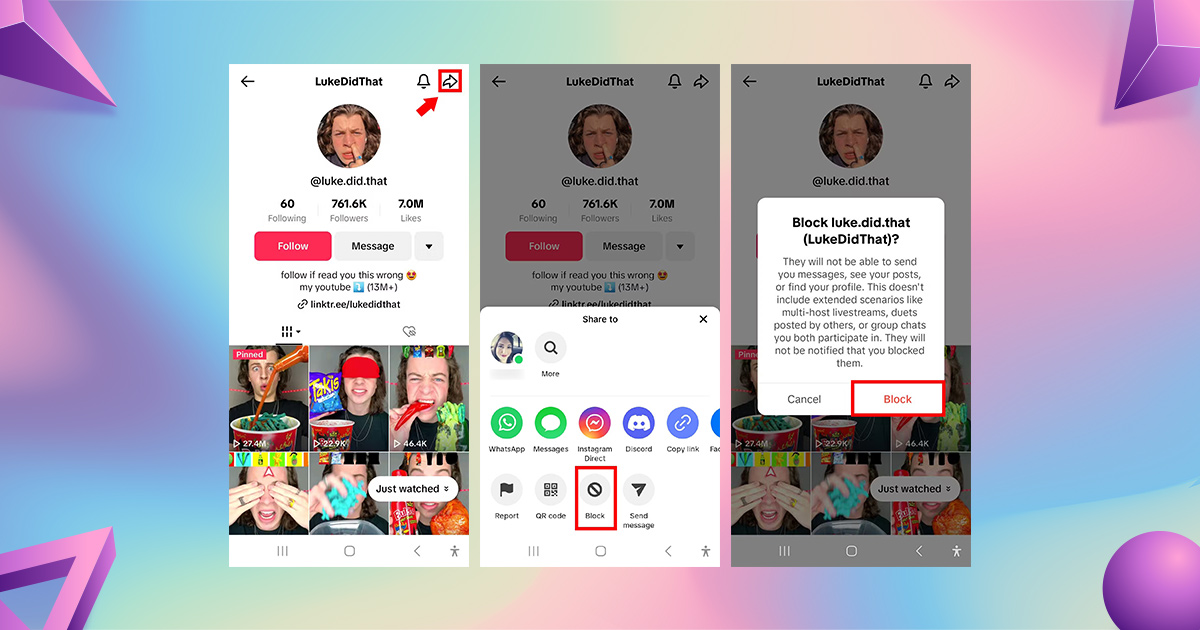
This is the most common way to block someone on TikTok, whether on iPhone or Android:
- Open the TikTok app and search for the user, or tap their name from one of their videos or comments.
- On their profile, tap the Share icon (the arrow) in the top-right corner, or the three-dot menu, depending on your app version.
- Select Block from the menu that appears.
- Confirm by tapping Block again on the pop-up.
Method 2: Block Someone From a Comment
If someone leaves a rude or spammy comment on one of your videos, you don’t need to visit their profile first:
- Find the comment on your video.
- Press and hold the comment (or tap the three dots next to it).
- Select Block from the menu that opens.
- Confirm by tapping Block again.
Keep in mind: when you block someone from a comment, their existing comment may still be visible to other viewers, even though they can no longer comment on your content going forward.
Method 3: Block Someone From a Direct Message (DM)
You can block someone straight from your inbox without visiting their profile at all:
- Open the conversation with the person in your TikTok inbox.
- Tap their name or profile photo to open their info.
- Tap Block.
- Confirm by tapping Block again.
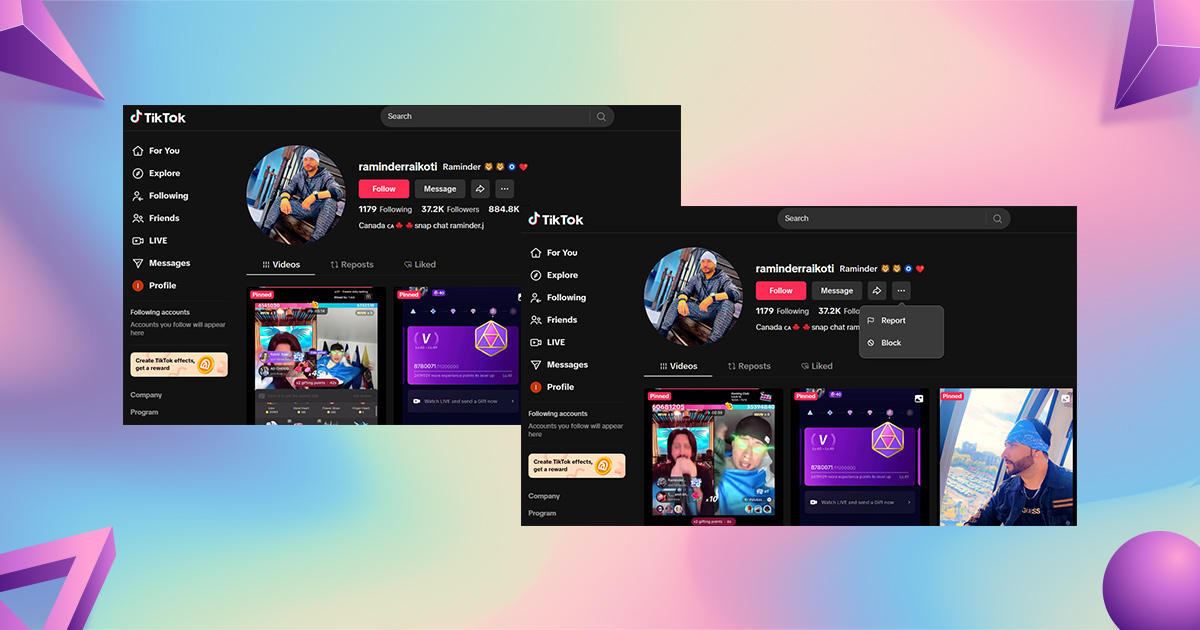
Method 4: Block Someone on the TikTok Website (Desktop)
If you prefer using TikTok on a computer, blocking someone is just as simple:
- Visit TikTok’s website and log into your account.
- Search for the person’s profile, or find them through a past interaction.
- Click the three-dot menu on their profile and select Block.
- Confirm the action.
For the full official rundown of this feature, TikTok’s own support article on blocking users covers each entry point in detail.
How to Block Multiple People at Once (Bulk Blocking)
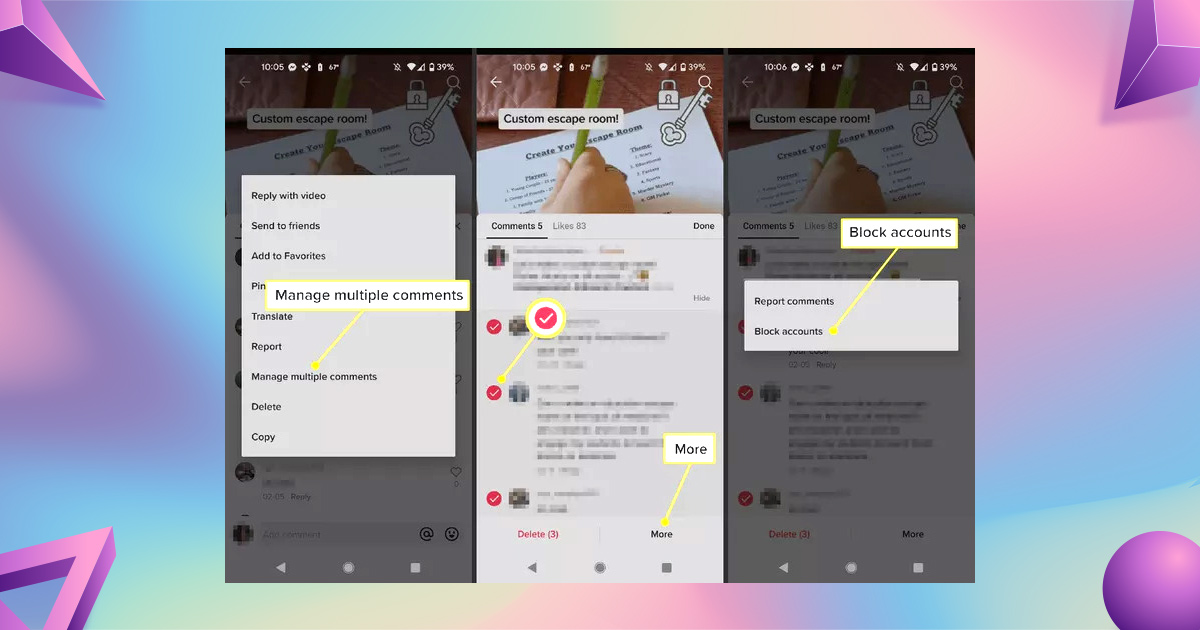
If you’re facing harassment or spam from several accounts at once, blocking people on TikTok one at a time isn’t practical. TikTok’s bulk blocking feature handles this:
- Open the TikTok app and go to your inbox.
- Tap into the comments or mentions from the users you want to block.
- Press and hold a comment, then select Manage Multiple Comments.
- Select every user you want to block, then tap Block Accounts to confirm.
How to Block Someone During a TikTok Live
If someone is causing trouble in your live stream, you don’t have to wait until it ends:
- Tap the troublesome comment or the person’s profile picture during the live.
- Open their profile from there.
- Tap Block and confirm.
If you co-host or run larger lives, you can also assign moderators who can block people on your behalf in real time.
How to Find and Manage Your Blocked Accounts List
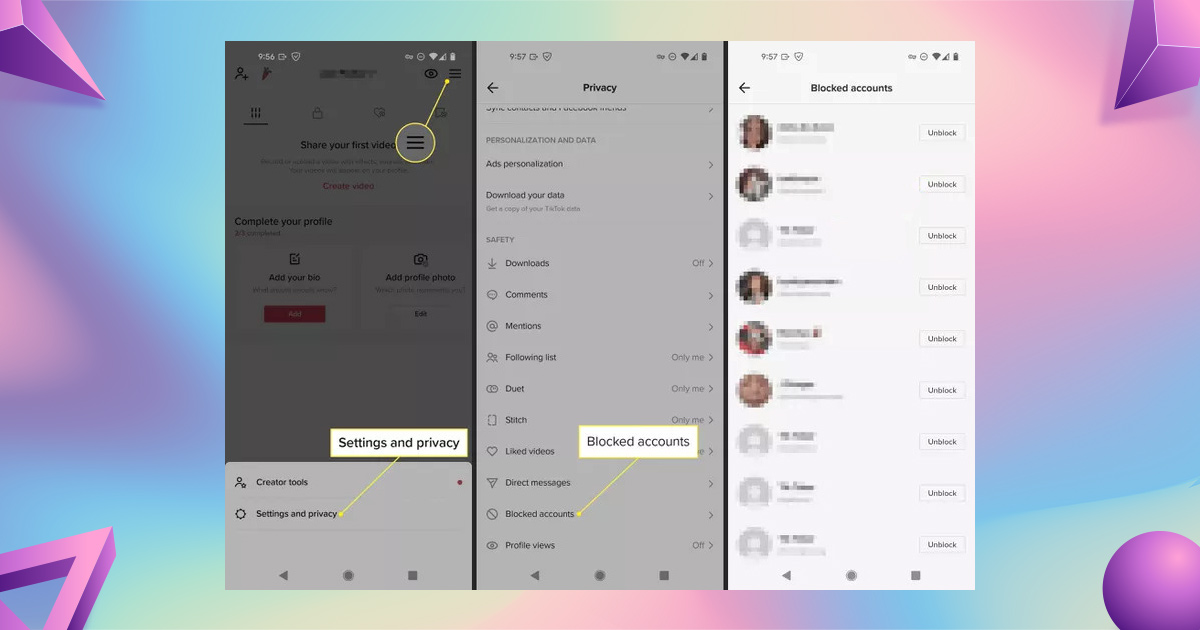
To review everyone you’ve blocked, or to unblock someone later:
- Open the TikTok app and go to your profile.
- Tap the menu icon in the top-right corner, then Settings and privacy.
- Under the Privacy section, scroll down to Blocked accounts.
- Tap the list to view and manage every account you’ve blocked.
How to Unblock Someone on TikTok
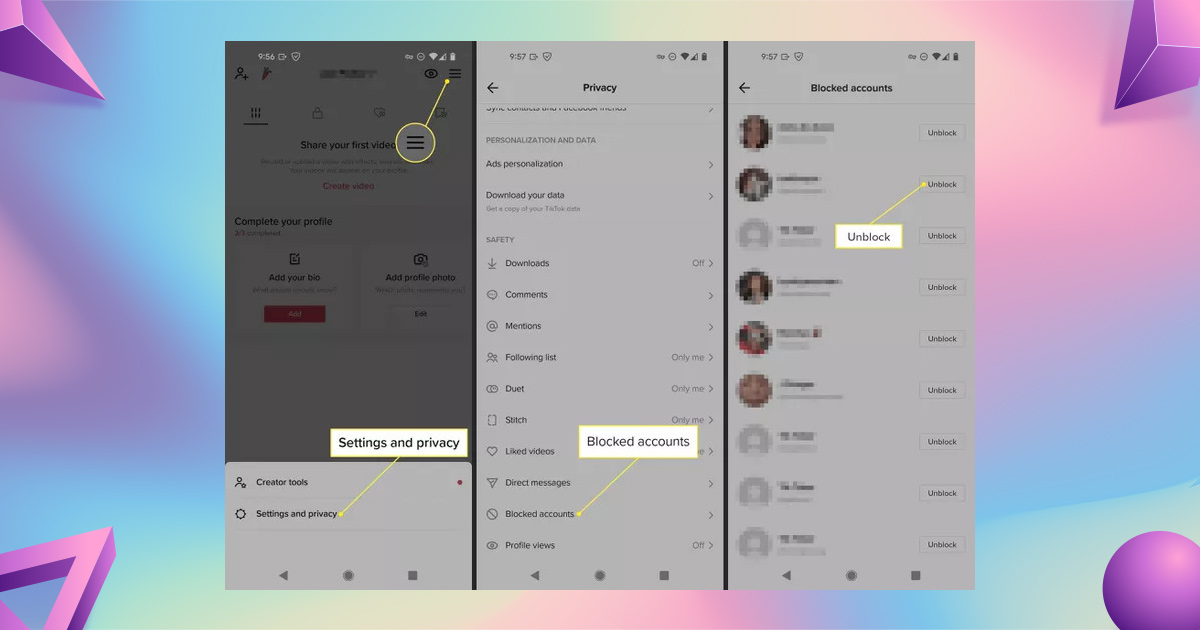
If you’ve changed your mind about someone you blocked:
- Open TikTok and go to your profile.
- Tap the menu icon in the top-right corner, then Settings and privacy.
- Tap Privacy, then Blocked accounts.
- Find the person in the list and tap Unblock next to their name.
Once unblocked, that person can interact with your content again, and you can always block them a second time if needed.
Will They Know You Blocked Them on TikTok?
TikTok doesn’t send a notification when you block someone. However, they may eventually figure it out if they try to visit your profile and find it inaccessible, or notice they can no longer see your videos. Once blocked, they can’t view your profile, see your posts, or send you messages.
If you’re blocking someone on TikTok for safety or privacy reasons, it’s worth blocking them on your other social platforms too, so they can’t reach you elsewhere. And if you suspect the account is a scammer or bot, report it to TikTok before blocking — reporting helps TikTok take action against the account for other users as well.
Block vs. Restrict vs. Report: Which Should You Use?
Blocking isn’t your only option, and it isn’t always the right one. Before you block people on TikTok, consider whether restricting or reporting fits the situation better:
- Block — Cuts off all contact and visibility between you and the other account. Best for harassment, stalking, or anyone you want to fully disengage from.
- Restrict — Limits what a specific follower can do (for example, their comments become visible only to them) without fully blocking them. Useful when you want to quietly reduce someone’s visibility rather than cut them off entirely.
- Report — Flags the account or specific content for TikTok’s Trust & Safety team to review, without necessarily blocking them yourself. Use this for violations of TikTok’s Community Guidelines, especially if other users could also be affected. TikTok’s report a problem page walks through what you can report and how.
Related Blog: How to know if someone blocked you on Snapchat
Other Privacy Tips to Control Who Sees Your TikTok Content
Blocking individual accounts is powerful, but you can layer on broader privacy controls too:
- Go to your profile and tap the menu icon in the top-right corner.
- Select Settings and privacy, then Privacy.
- Turn on Private account so only approved followers can see your videos.
- In the same settings area, find Suggest your account to others and turn off options like Contacts and Facebook friends to stop your profile from appearing in suggestions to people you know.
TikTok doesn’t currently let you fully disable profile-view tracking, but combining a private account with selective blocking covers most privacy concerns.
Best Practices for Blocking on TikTok
- Weigh the decision first. Blocking is effective, but confirm it fits the situation — sometimes restricting or muting is enough.
- Use bulk blocking for repeat offenders. If multiple accounts are targeting you, the bulk blocking feature saves time over blocking one by one.
- Pair blocking with privacy settings. Combine blocking with a private account and limited suggestions for stronger protection.
- Report before you block, when appropriate. If an account violates TikTok’s Community Guidelines, reporting it first helps reduce harmful behavior platform-wide, not just for your own account.
Why Block Someone on TikTok?
A few of the most common reasons people block someone on TikTok:
- Harassment or inappropriate conduct — persistent unwanted messages or offensive comments.
- Spam or bot accounts — keeping your feed and inbox free of irrelevant or promotional clutter.
- Privacy concerns — obsessive profile views or uncomfortable comments.
- Content theft — someone reposting your videos without permission.
- Control over your audience — simply deciding who has access to your content.
Conclusion
Blocking on TikTok is a private, one-sided action: the person you block won’t be notified, and you stay in control of who can reach you. Used alongside restricting, reporting, and a private account, it’s how you keep your TikTok experience focused on the content and community you actually want.
If you’re looking to improve your social media strategy and create engaging TikTok content, Storefries offers an all-in-one solution. With AI-powered tools, Storefries helps you craft captivating content and analyze social media trends effortlessly. Sign up today to elevate your social media game!
FAQ
1. What’s the TikTok block limit?
TikTok caps the number of accounts you can block. If you can’t block someone, you may have hit that limit, or the Block option may be in a slightly different spot depending on your app version — check both the Share icon and the three-dot menu on a profile.
2. Can you block someone on TikTok who doesn’t follow you?
Yes. You can block any TikTok user, whether they follow you or not. Visit their profile, tap the Share icon or three-dot menu, and select Block.
3. Can you block someone who has already blocked you?
If someone has already blocked you, you typically can’t visit their profile to block them back, since TikTok hides it from you. In most cases, there’s no need to: if they’ve blocked you, they already can’t contact you.
4. Can you block someone on TikTok without visiting their profile?
Yes. You can block someone directly from a comment they’ve left or a DM they’ve sent, without ever opening their profile — see Methods 2 and 3 above.


Really clear and practical guide—thanks for spelling it out so well! I appreciate how you broke down not just the “how,” but also the why and when it makes sense to use TikTok’s block feature—like handling harassment, spam, or privacy concerns. The walkthrough for bulk blocking via comments is a game changer for managing multiple unwanted interactions efficiently. And the reassurance that blocking is reversible, plus handy tips for reviewing or unblocking users later, made me feel more in control of my TikTok experience. Solid advice all around!