
How to Ask for Reviews: 9 Steps, Templates & 2026 Rules
Learn how to ask for reviews the right way: 9 steps, copy-paste templates for WhatsApp, SMS, and email, plus Google and FTC rules for 2026.
Kasthuri| 12 Oct 2026

Quick answer: To ask for reviews, send every customer a short, polite request soon after their purchase or visit, with a direct review link, by WhatsApp, SMS, email, QR code, or in person. Keep the ask open-ended. Never offer a reward, never ask only happy customers, and never tell people what to write. A simple formula works every time: Thank, Ask, Link.
Key takeaways
- Use a direct review link or QR code so leaving a review takes seconds.
- Ask every customer, triggered by an event (order delivered, appointment completed), not by how happy they seemed.
- Google bans any incentive for reviews, and the FTC bans incentives tied to positive reviews, so skip discounts and gifts.
- Match the channel to the customer: WhatsApp and SMS for speed, email for online orders, QR codes for in-person visits.
- Send one polite reminder, then respond to every review you receive.
Plenty of happy customers never leave a review, and the reason is usually simple: nobody asked, or the process felt like a chore. Fixing that is one of the most reliable ways to build trust, because reviews are where new customers make up their minds. BrightLocal’s Local Consumer Review Survey found that 96% of consumers read reviews when researching local businesses, and that only about 11% would ignore every kind of review request.
This guide walks through exactly how to ask for reviews, in priority order, with original templates you can paste today and the 2026 rules that keep your profile safe. If you’re also working on your wider local presence, our guides on how Google reviews boost local SEO and local search marketing cover what happens after the reviews start arriving.
Step 1: Know the Rules Before You Send a Single Request
You can ask customers for reviews, but you cannot reward them, filter them, or script them. A review request that breaks a platform’s rules can get reviews removed or your profile restricted, so this comes first.
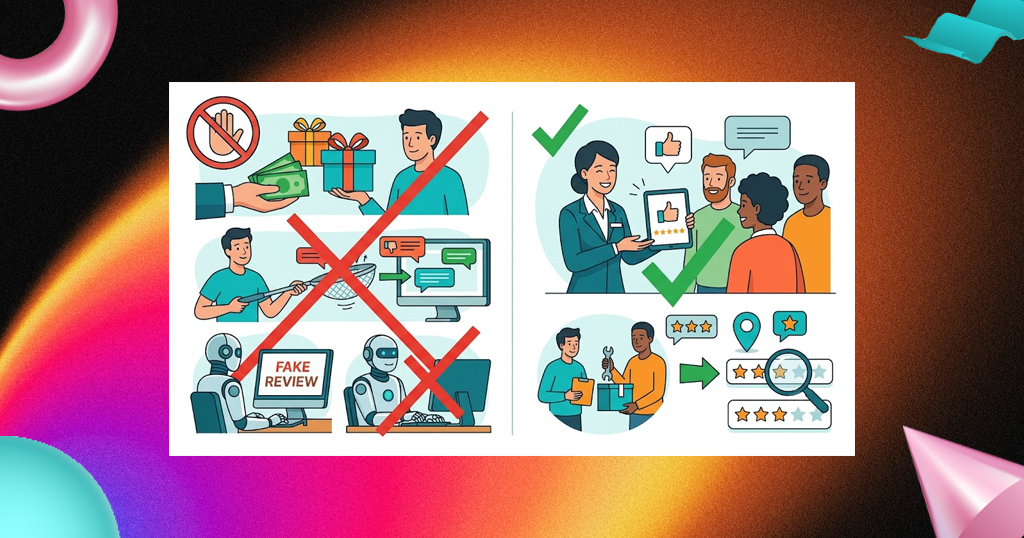
Google’s Maps user contributed content policy allows you to encourage genuine reviews. It does not allow incentives such as payment, discounts or free goods in exchange for a review, or in exchange for changing or removing one. In the US, the FTC’s final rule on fake reviews and testimonials bans incentives that depend on a positive (or negative) review, and also targets fake reviews and review suppression. The full rule text is in the Federal Register (16 CFR Part 465). Google goes further than the FTC: it prohibits incentives for reviews outright, so follow the stricter rule.
| Do | Don’t |
|---|---|
| Ask all customers, using the same process | Ask only customers you think are happy (review gating) |
| Share a link or QR code that opens the review form | Offer discounts, gifts, contest entries, or loyalty points for a review |
| Use neutral wording like “share your honest experience” | Ask for a 5-star rating or tell people what to write |
| Send one polite reminder | Pressure customers to review while they are still on your premises |
| Reply to every review, good or bad | Threaten, bribe or pressure people to remove a negative review |
| Let genuine customers write in their own words | Have employees, family or friends post reviews |
What changed in 2026: Industry reports on Google’s April 2026 policy update say it added explicit bans on pressuring customers to review while on-site, steering what they write (including asking them to name staff members), and giving staff review quotas (Launchcodex, Luau Group). Some reports also treat shared tablets and review kiosks as risky (Three Chapter Media). The safest approach is a QR code or link customers open on their own phone, when they choose. Always confirm the current wording on Google’s policy page before you publish a review-request process.
Step 2: Create a Direct Review Link and QR Code
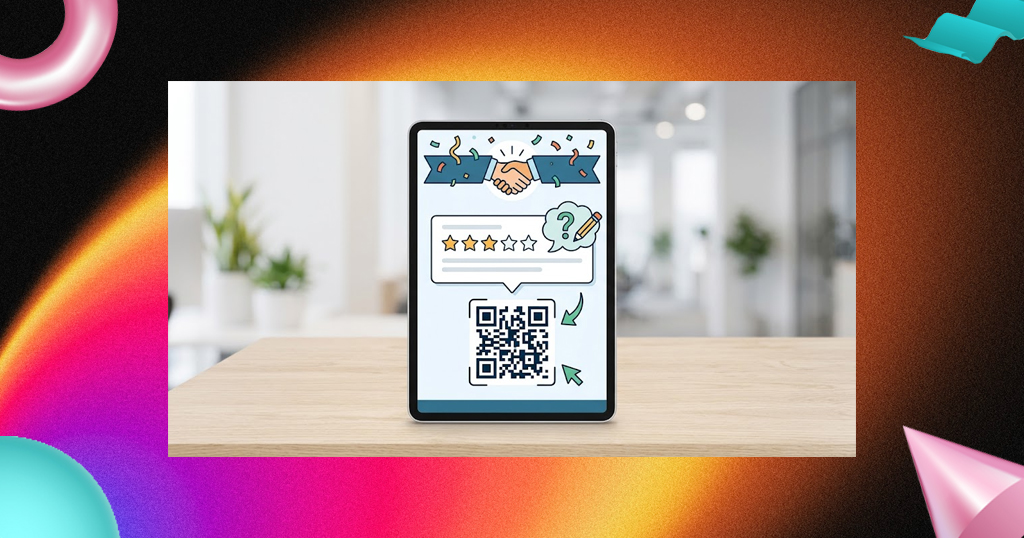
A direct review link takes customers straight to the star-rating box, which removes the biggest barrier to leaving a review. Without it, people have to search for your business, find the right listing, and hunt for the button.
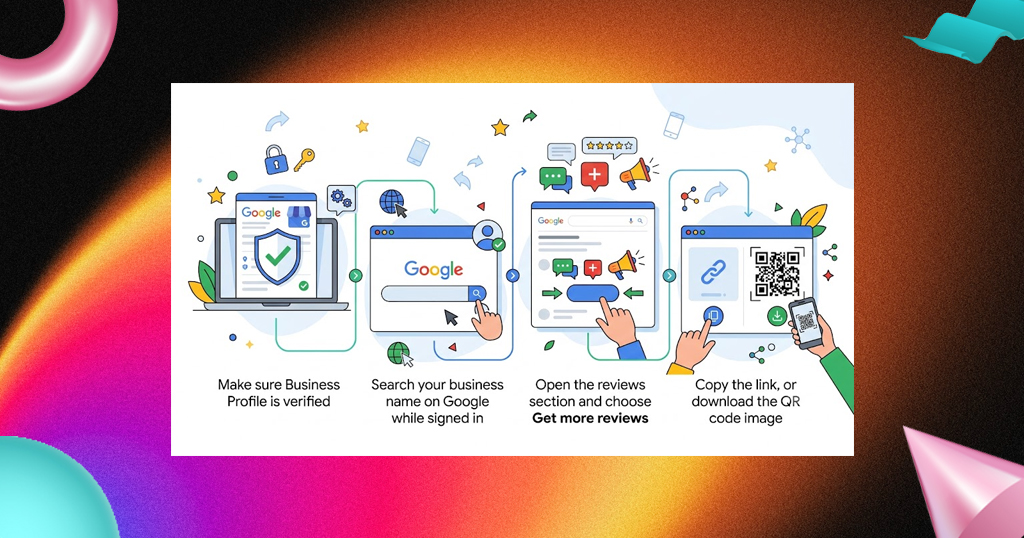
To get your Google review link and QR code:
- Make sure your Business Profile is verified (see our guide to verifying your Google Business Profile).
- Search your business name on Google while signed in to the account that manages the profile.
- Open the reviews section and choose Get more reviews (some versions label it Ask for reviews).
- Copy the link, or download the QR code image.
Google’s own help page, Manage customer reviews, confirms you can share a review request link or QR code with customers. Google’s suggested placements include receipts, thank-you emails, the end of a chat conversation, and a printed QR code in your store (Search Engine Roundtable). For a step-by-step walkthrough with screenshots, see our guide on how to get a Google review link.
Tip for multiple locations: every location needs its own link and QR code. Sending customers to the wrong branch’s profile splits your reviews and confuses people.
Step 3: Choose the Right Channel for Each Customer
The best channel is the one your customer already uses to talk to you. Offering more than one option raises the chance someone responds.
| Channel | Best for | Effort | Watch out for |
|---|---|---|---|
| Mobile-first customers, especially in India | Low | Customer must have opted in to messages | |
| SMS | Appointments, deliveries, quick services | Low | Consent, quiet hours, STOP opt-out |
| Online orders, bookings, longer sales cycles | Low (easy to automate) | Keep it short, one clear link | |
| In person (verbal ask + QR code) | Restaurants, salons, clinics, retail | Medium | No pressure while customers are on-site |
| Receipt, packaging or invoice QR code | Retail, delivery, home services | Low (one-time setup) | Neutral wording only |
| Social media (post, story, bio link) | Existing followers and community | Low | Invite everyone, not just fans |
| Website and email signature link | All customers | One-time | Make the link easy to find |
InMoment research cited in its guide to asking for reviews found that as much as 70% of reviews come from post-transaction request emails, which is a good reason to automate at least one channel. If social media is part of your mix, our social media monitoring guide shows how to keep track of what customers say once they respond.

Step 4: Ask at the Right Moment
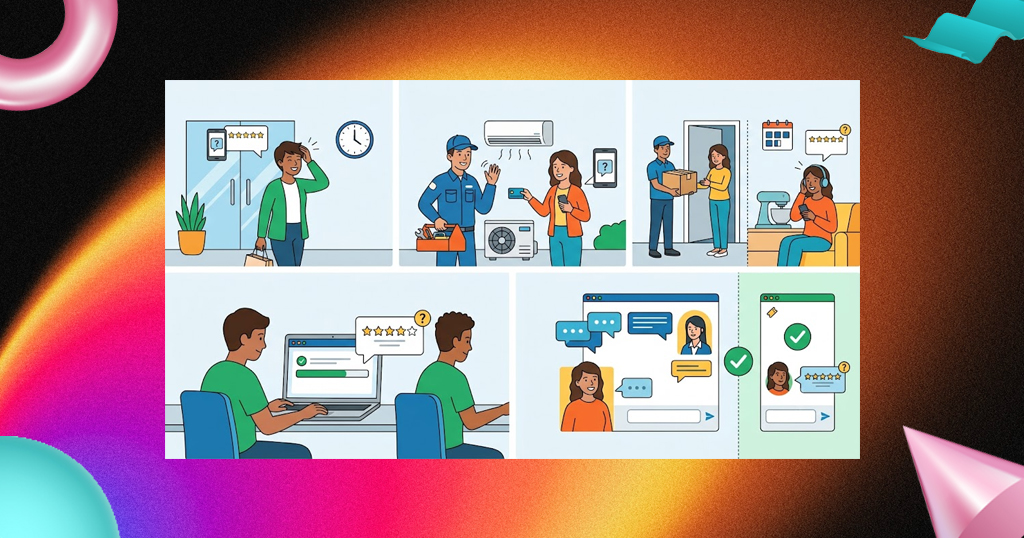
Ask soon after the experience, while the details are fresh, and trigger the request by an event rather than a feeling. Event triggers keep your process fair and stop you from accidentally gating.
- In-person services (salon, clinic, restaurant): the same day, after the visit is complete.
- Home and field services: right after the job is finished and paid.
- Product orders: a few days after delivery, so customers have used the item.
- Online bookings and subscriptions: after the first meaningful use, not at sign-up.
- Support interactions: at the end of the conversation, once the issue is resolved or closed.
Avoid asking weeks or months later. The longer the gap, the less likely anyone is to remember enough to write something useful.
Step 5: Write the Request With the Thank, Ask, Link Formula
Every good review request has three short lines: thank the customer, ask for an honest review, and give the link. That’s it. Short requests get read; long ones get ignored.
- Thank: Appreciate them for choosing you.
- Ask: Request an honest review of their experience. Don’t ask for a specific rating or wording.
- Link: Include one direct link (or QR code). Don’t add anything else to click.
Copy and adapt these templates. Replace the brackets with your details. If you want more variations for WhatsApp, in-person, and QR-code asks, see our collection of 25+ review request scripts for 2026.
WhatsApp message
Hi [Name], thank you for choosing [Business] today! If you have a minute, we’d really value your honest review of your experience: [link]. Thank you! – [Your name], [Business]
SMS (keep under 160 characters where possible)
Thanks for visiting [Business], [Name]! We’d value your honest feedback: [short link]. Reply STOP to opt out.
Subject: How was your experience with [Business]?
Hi [Name],
Thank you for choosing [Business]. Your honest feedback helps us improve and helps other customers decide.
Would you take a minute to share your experience? [Review link]
Thanks again, [Your name], [Business]
In person (verbal ask)
Thanks so much for coming in. If you’d like to share your experience later, you can scan this code whenever it suits you. Honest feedback helps other customers find us.
Receipt, packaging or counter sign
Tell us how we did, and help others decide. Scan to leave an honest review.
Social media post or story
Been to [Business]? Share your honest experience on Google. Link in bio. Thank you for supporting local!
Home services email
Subject: Thanks for choosing [Business]
Hi [Name], thanks for letting us take care of [job]. If you have a moment, we’d appreciate an honest review of the service: [link]. It helps neighbors choose a provider they can trust.
[Your name]
Healthcare or clinic message (privacy-safe)
Hi [Name], thank you for visiting [Business]. If you’d like to share feedback about your experience, you can do so here: [link]. Please don’t include personal health details in a public review.
Why these work: they’re short, personal, polite, and neutral. They invite honesty instead of praise, which keeps you inside the rules and makes the reviews more believable to readers.
Step 6: Ask Every Customer, Every Time
Consistency beats cleverness: build a repeatable process that asks everyone. Selective asking is review gating, and Google prohibits it. It also makes your review profile look unnaturally perfect.
A simple process you can set up in an afternoon:
- Pick one trigger per customer type (order delivered, appointment closed, job completed).
- Choose your primary channel and one backup channel.
- Save the templates above in a shared document or your messaging tool.
- Assign one owner per location so requests actually get sent.
- Review the process monthly and update templates that aren’t working.

Avoid review quotas or competitions that push staff to pressure customers, since reports of Google’s 2026 update flag staff quotas as a violation. Instead, recognize the team for good service and for following the process.
Step 7: Cover the Right Review Platforms
Google comes first for most local businesses, but offering a second option helps customers who don’t use Google. Focus your effort where your customers search.
- Google Business Profile: the priority for local visibility. See our guide on ranking higher on Google Business Profile.
- Facebook recommendations: useful if your customers follow you there. Share your Page’s review link in follow-ups.
- Industry-specific sites: such as travel, healthcare or home services directories, depending on where your customers look.
- Yelp: Yelp discourages businesses from asking for reviews, so don’t send review requests. Instead, make your listing easy to find and let reviews happen naturally (BrightLocal’s Yelp guide).

Some platforms take longer to complete than others. If you point customers at one that needs a lot of detail, offer a quicker alternative as a second option.
Step 8: Send One Polite Reminder
One friendly reminder a few days later is fine; repeated nagging is not. Many people intend to leave a review and simply forget.
Reminder template
Hi [Name], a quick, friendly reminder in case you missed our earlier note. If you have a minute, we’d appreciate your honest feedback: [link]. No worries if you’re busy. Thank you!
Don’t send a reminder to anyone who has already replied, opted out, or told you they’d rather not.

Step 9: Respond to Every Review and Track Results
Replying to every review shows customers and Google that a real team is paying attention. A short, personal reply to praise and a calm, helpful reply to criticism both build trust. If you receive a review that breaks policy (fake, spam, off-topic), flag it through your profile. For unfair negative reviews, our guide on handling and removing bad Google reviews explains what’s possible.
Track four numbers each month to see whether your process is working:
- Requests sent: how many customers you asked.
- Reviews received: new reviews across your platforms.
- Conversion rate: reviews received divided by requests sent.
- Average rating and response time: to spot service issues early.

If your conversion rate is low, test one change at a time: the channel, the timing, or the wording. Change one variable, measure the result, then repeat.
Put Your Reviews to Work
Every genuine review is also customer-created content you can reuse. Once reviews start arriving, share the best ones on your social channels and website, and turn recurring praise into content ideas. Our guide to getting more user-generated content explains why customer voices build social proof, and our content marketing for small business guide shows how to mine reviews and testimonials for posts and web copy.
One caution: if your website has a reviews section, don’t hide the negative ones to look perfect. The FTC’s rule targets review suppression, and a mix of ratings also looks more believable to shoppers.
Consent and Privacy Rules for Review Requests
Review requests sent by email, SMS or WhatsApp are marketing-adjacent messages, so consent rules can apply. The rules differ by country, so check with a qualified advisor for your situation. This table is general information, not legal advice.
| Region | What to keep in mind |
|---|---|
| United States | Text messages fall under the TCPA, and email under CAN-SPAM. Get clear consent for texts, identify your business, avoid quiet hours (before 8 am or after 9 pm local time), and honor STOP requests promptly. |
| India | Commercial SMS goes through DLT-registered sender IDs and templates under TRAI rules. The Digital Personal Data Protection Act, 2023 sets expectations for consent when handling personal data. WhatsApp business messaging requires customers to opt in. |
| UK and EU | GDPR and (in the UK) PECR require lawful grounds, clear opt-in for marketing messages and an easy opt-out. |
| Canada and Australia | CASL (Canada) and the Spam Act (Australia) require consent, sender identification, and a working unsubscribe or opt-out. |
The safest habit everywhere: collect phone numbers and emails with clear permission, say who is messaging, keep a record of consent, and make opting out one step.
Industry Quick Tips
- Restaurants and cafes: put a QR code on the bill folder or table card, and send a thank-you message after online orders. For ideas on what reviews look like in this category, see our restaurant review examples.
- Salons and spas: send a WhatsApp or SMS the same day, once the appointment is complete.
- Clinics and dental practices: keep the request general and remind patients not to share private health details publicly.
- Home services: ask when the job is finished and the customer has seen the result.
- Retail and e-commerce: add a QR code to the packaging and send an email a few days after delivery.
- Multi-location brands: give each branch its own link, owner, and monthly check-in.
Common Mistakes to Avoid
- Offering rewards: discounts, freebies, and contest entries for reviews are prohibited on Google.
- Review gating: sending requests only to customers you expect to be happy.
- Asking for 5 stars or telling customers what to write, including staff names.
- Pressuring on-site: handing a device to a customer and waiting for them to type.
- Making it hard: sending people to a homepage instead of a direct link.
- Waiting too long: asking weeks later when the memory has faded.
- Using one channel only: missing customers who don’t open email or answer texts.
- Ignoring replies: collecting reviews without ever responding to them.
- Posting fake or insider reviews: this can trigger removals, restrictions, and FTC penalties.
Review Request Checklist
- [ ] Business Profile verified and review link and QR code created
- [ ] One link per location
- [ ] Templates saved for WhatsApp, SMS, email, and in-person
- [ ] Triggers set for each customer type
- [ ] Every customer asked, not just happy ones
- [ ] No incentives, no steering, no 5-star requests
- [ ] Consent collected for SMS, email and WhatsApp
- [ ] One reminder scheduled, then stop
- [ ] Every review answered
- [ ] Monthly numbers tracked
FAQ
1. What is the best way to ask for reviews?
The best way is a short, polite message with a direct review link, sent soon after the purchase or visit through the channel your customer already uses. WhatsApp, SMS, and email work well for most businesses, and a QR code works well in person. Use the Thank, Ask, Link formula and ask every customer.
2. Is it okay to ask customers for Google reviews?
Yes. Google allows businesses to ask customers for genuine reviews, and provides a shareable link and QR code for this purpose. What you can’t do is offer incentives, ask only happy customers, or tell people what to write.
3. Can I offer a discount or gift for a review?
No. Google prohibits incentives such as payment, discounts, or free goods in exchange for reviews, whether positive or negative. The FTC also bans incentives that depend on a particular sentiment. Thank customers for their time, but don’t tie a reward to the review.
4. Can I ask only my happy customers to leave a review?
No. Asking only satisfied customers is called review gating, and Google prohibits it. Send the same request to every customer, triggered by an event like a completed order, so your process stays fair.
5. How soon after a purchase or service should I ask?
Ask soon after the experience, while it’s fresh. For in-person services, ask the same day. For products, wait a few days after delivery so customers have tried the item. Avoid waiting weeks.
6. How do I ask for a review without being pushy?
Keep the request short, thank the customer first, make it clear that honest feedback is welcome, and give an easy link. Send one reminder at most, and never pressure people to review while they’re still at your business.
7. Can employees, family or friends leave reviews for my business?
They shouldn’t. Reviews from people with a conflict of interest violate platform policies, and undisclosed insider reviews are targeted by the FTC’s rule. Encourage genuine customers only.
8. Is it legal to ask for reviews by SMS or WhatsApp?
Yes, if you follow consent and messaging rules. In the US, that means clear consent, business identification, and a working opt-out. In India, it means DLT-registered SMS templates and opted-in WhatsApp contacts. Rules vary by country, so check with a qualified advisor.
9. Should I ask customers to mention my staff or services in their review?
It’s safer not to. Reports on Google’s 2026 policy update say steering what customers write, including asking them to name staff, is now prohibited. Keep the ask open-ended and let customers describe their own experience.
10. Can I ask for reviews on Yelp?
Yelp discourages businesses from soliciting reviews, so it’s best not to. Make your Yelp listing easy to find and focus your review requests on platforms that allow them, such as Google.
Make Asking for Reviews Part of Your Routine
Asking for reviews works best as a habit, not a one-off campaign. Storefries is an all-in-one social media tool that helps you schedule, grow, and track your channels from one dashboard, so you can share your review link in regular posts and keep an eye on the conversation around your business. When you’re ready to build review requests into your weekly routine, start your free Storefries trial and make it effortless.



Leave A Comment