
YouTube Banner Size Guide: Perfect Channel Art 2026
Learn the correct YouTube banner size, safe area, and design tips to create clean, professional channel art that looks great on all devices.
Kasthuri| 05 Oct 2026
Many brands spend time improving video titles, thumbnails, and descriptions, but YouTube banner size and channel art are often ignored. This is a big mistake. Your YouTube banner is one of the first things people see when they visit your channel. Before they watch a video, they judge your brand by your banner.
We believe a well-designed YouTube banner builds trust, shows professionalism, and clearly tells viewers what your channel is about. The good news is that creating a strong channel banner is easy when you follow the right size, layout, and design rules.
This guide explains everything in simple language. We cover YouTube banner dimensions, safe areas, aspect ratio, cropping rules, uploading steps, design tips, and common mistakes. This article is written for easy understanding and practical use.
Do more with Storefries! Manage, grow, and stay ahead with this all-in-one social media tool. Start Your Free 30-Day Trial
What Is a YouTube Banner?
A YouTube banner is the large image shown at the top of a YouTube channel page. It is also called YouTube channel art or a channel banner. The banner appears behind your profile picture and channel name.
A good banner helps to:
- Show your brand identity
- Make your channel look professional
- Tell viewers what content you create
- Build trust with new visitors
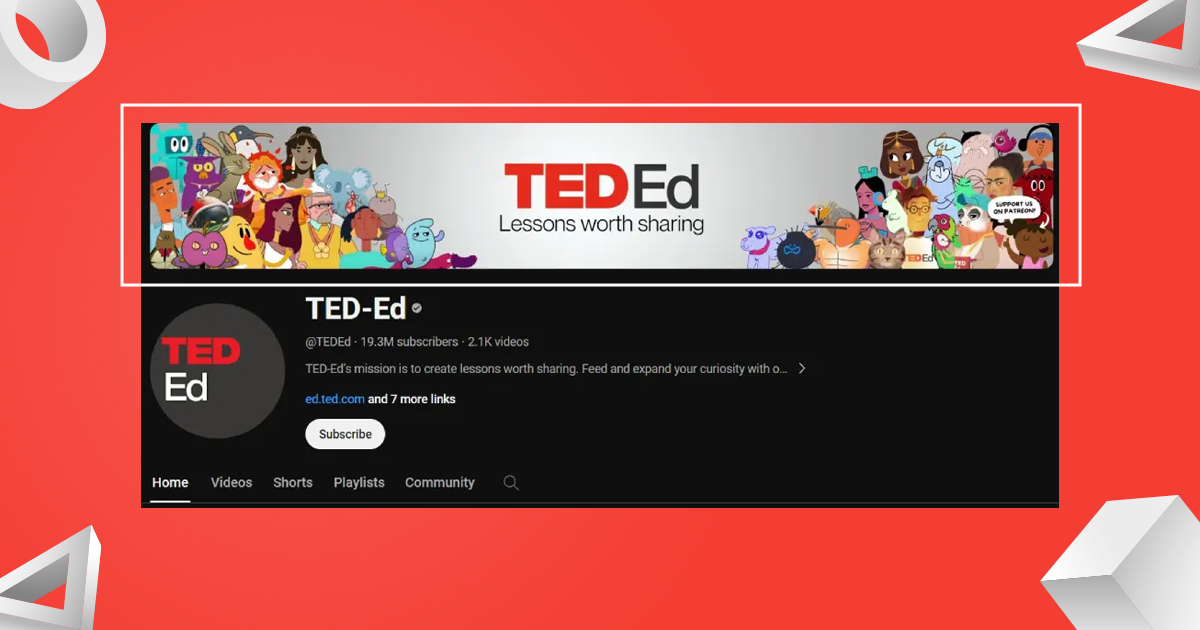
Your banner works like a digital billboard for your YouTube channel. If you’re still deciding whether YouTube fits your brand’s platform mix, our guide on choosing the right social media platforms for your business breaks down what YouTube is best suited for.
Why YouTube Banner Size Is Important
YouTube shows banners differently on:
- Mobile devices
- Tablets
- Desktop computers
- TV displays
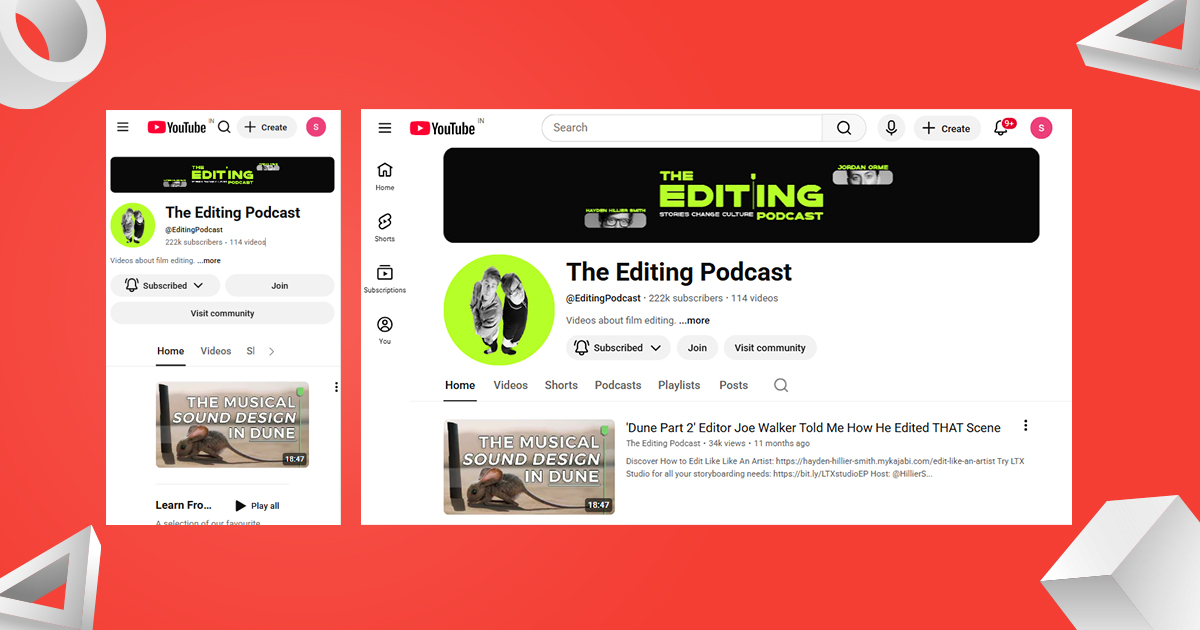
If your banner size is wrong, YouTube may:
- Crop important text
- Hide your logo
- Cut off images
Using the correct YouTube banner size ensures your channel art looks good on every device.
Official YouTube Banner Size (Latest Guidelines)
Getting the YouTube banner size right can feel challenging on a desktop, but the real goal is consistency across all screens. Since channel art appears differently on mobile devices, desktops, and TV displays, following YouTube’s own official banner image guidelines is the safest approach.
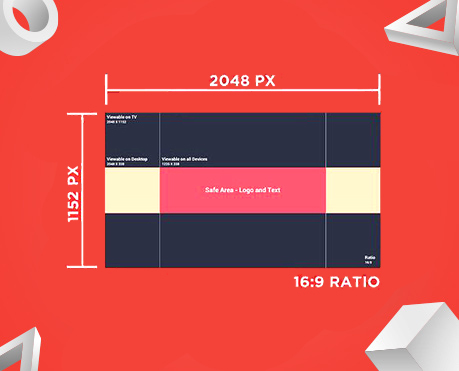
YouTube recommends a banner size of 2560 x 1440 pixels for the best results. Here are the key specifications to remember:
- Recommended size: 2560 x 1440 pixels
- Minimum upload size: 2048 x 1152 pixels (16:9 aspect ratio)
- Minimum text & logo safe area: 1235 x 338 pixels
- Standard safe area (all devices): 1546 x 423 pixels
- Accepted file formats: JPG or PNG
- Maximum file size: 6MB
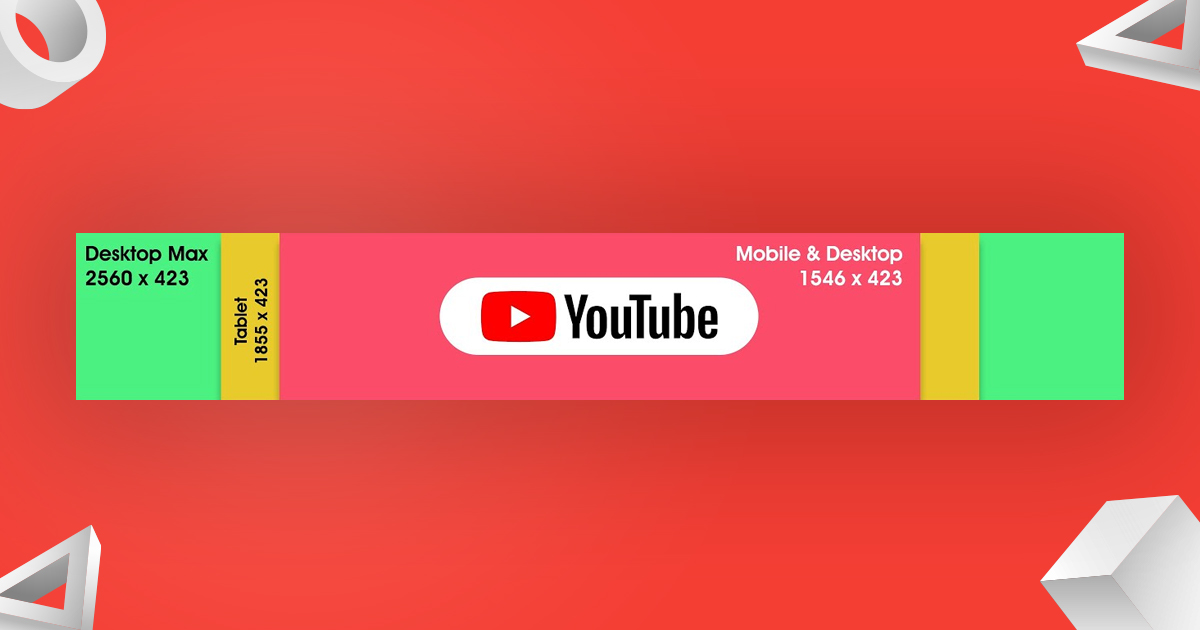
Using the full recommended 2560 x 1440 size ensures your banner displays correctly on TV screens, while the safe area protects text and logos on desktop and mobile. Tools like Canva already include these YouTube banner dimensions as templates, making it easier to create a YouTube banner quickly and precisely. For visual examples of these dimensions in action, Wyzowl’s YouTube banner size guide shows side-by-side mockups of each safe area.
How YouTube Crops Banners on Different Devices
YouTube automatically crops banners based on screen size.
How Cropping Works
- TV displays: Show the full 2560 x 1440 image
- Desktop screens: Crop the top and bottom
- Mobile devices: Show only the center safe area
This is why center alignment is critical for your banner image.
What to Include in a YouTube Banner
A YouTube banner should be clear and simple.
Essential Elements
- Channel name
- Logo or brand symbol
- Short tagline or content description
- Brand colors
Your banner should answer one question quickly: “What is this channel about?” If you’re also naming or rebranding your channel, our list of 150+ YouTube channel name ideas can help you land on something your banner can build around.
What to Avoid in a YouTube Banner
Avoid these common mistakes:
- Too much text
- Small fonts
- Low-quality images
- Placing text outside the safe area
- Using too many colors
Simple designs work best for channel art.
How to Upload a YouTube Banner (Step-by-Step)
Uploading your banner takes only a few minutes.
Steps to Upload Channel Art
1. Sign in to YouTube
2. Click your profile icon
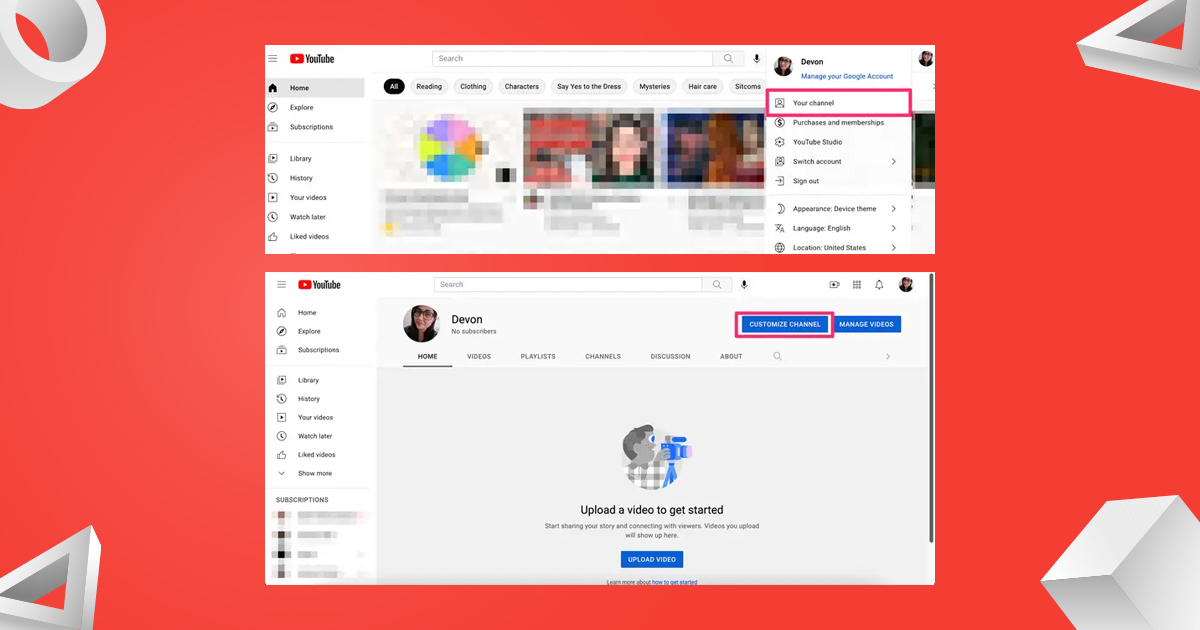
3. Select YouTube Studio
4. Click Customization on the left menu
5. Open the Branding tab
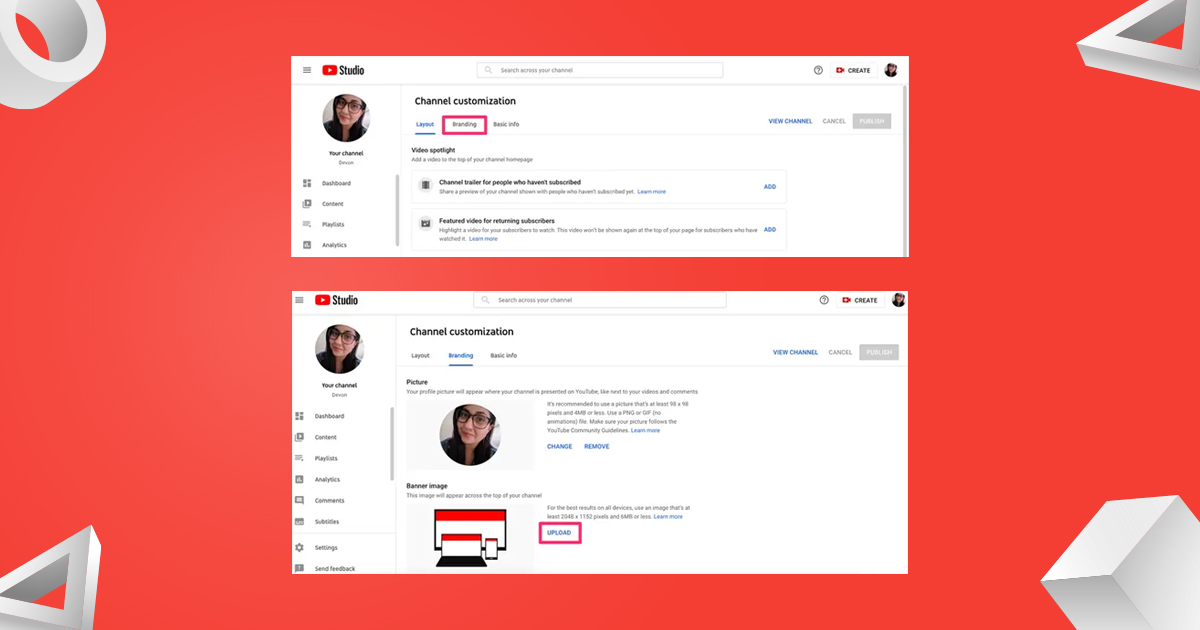
6. Click Change under Banner Image
7. Upload your banner image
8. Check previews for TV, desktop, and mobile
9. Click Publish
Always check previews across every device before publishing. For the full official walkthrough, see YouTube’s guide to managing your channel branding.
YouTube Banner Links: What You Can Use Now
YouTube no longer allows clickable links inside banners. Instead, links appear below the channel description.
External Link Rules
- You can add up to 14 links
- The first link shows on the channel homepage
- Other links appear in the About section
How to Add Links
- Go to Customization
- Click Basic Info
- Add or reorder links
- Place the most important link first
YouTube Banner Design for Personal Channels
For creators and influencers:
- Use a clear photo or portrait
- Keep text short
- Use friendly colors
- Focus on personality
Personal banners help viewers connect with you faster.
YouTube Banner Design for Business Channels
For brands and companies:
- Use your logo clearly
- Stick to brand colors
- Add a short value message
- Keep the layout clean
Business banners should feel professional and trustworthy.
Using YouTube Banners for Promotions
You can update banners to promote:
- Product launches
- Live streams
- Webinars
- Events
- Sales
Do not change banners too often. Frequent changes can confuse viewers. Use promotional banner designs only for important campaigns. If you’re timing a banner update around a livestream or new upload, our guide to the best time to post on YouTube and other platforms can help you plan the timing around peak viewer activity.
Best Practices for YouTube Banner Design
Designing a YouTube banner is one of those rare creative tasks where imagination has room to roam, yet discipline still matters. While you have freedom to experiment, a few grounded principles can make the difference between a banner that merely exists and one that quietly persuades, signals credibility, and anchors your brand identity.
Below are essential practices to shape a banner that feels intentional rather than improvised.
Look Beyond the Mobile-Only Safe Zone
When building channel art, many creators focus only on the central safe area and overlook the surrounding space, leaving valuable visual real estate unused. While the middle should highlight your core message, the outer areas are equally important, especially on desktop and TV screens where they are fully visible. Adding subtle backgrounds, textures, or secondary visuals in these sections enhances depth and keeps the banner from looking empty or unfinished on larger displays.
Only Use High-Quality Images
Blurry visuals can quickly damage your channel’s credibility, especially when banners are viewed on large screens. Using a high-resolution background image keeps your banner sharp and consistent across all devices, from mobile devices to widescreen TV displays. Clear, well-scaled visuals create a professional look, and tools like Canva’s stock image library make it easy to choose images that maintain quality without distortion.
Simple, Clean Designs Are Always Best
Cluttered banners rarely inspire trust. Most viewers see your YouTube channel on a mobile device or desktop, so an overcrowded design can drown your message in visual noise. Clean, simple layouts with balanced spacing, thoughtful typography, and clear lines create harmony. Minimal YouTube banner templates maintain order even over complex backgrounds, resulting in a design that feels organized, calm, and purposeful.
Align Your Banner With Your Channel Icon
Your YouTube profile picture should visually align with your banner image, just like a profile photo complements a cover image on social media. Since both appear together, consistency in style and tone is essential. You can update your profile picture in YouTube Studio under the customization section by clicking “Change” in the Picture area. The recommended size for YouTube profile pictures is 800 x 800 pixels, and because YouTube applies a circular crop, keeping key elements centered is important.
While a banner may look static, it actually serves as a first impression. When designed with clarity and balance, it silently represents your YouTube channel before any video is played.
Related blog: how to get more views on youtube
Best Tools to Create YouTube Banners
You can create a YouTube banner using:
- Canva
- Adobe Photoshop
- Adobe Illustrator
- Figma
Templates are helpful, but always double-check the banner size before uploading.
Why YouTube Banner Size Affects Channel Growth
Your banner image helps:
- Build first impressions
- Increase trust
- Improve brand recognition
- Make viewers stay longer
A professional banner image encourages people to explore your videos. Once your banner is drawing people in, pairing it with the right hashtags for YouTube Shorts can help turn that first look into actual channel growth.
How Often Should You Update Your Banner?
Update your YouTube banner when:
- Your branding changes
- You launch a new series
- You run a major campaign
Avoid unnecessary changes. Consistency builds trust in your channel art.
Final Thoughts on YouTube Banner Size and Design
We see YouTube banners as powerful branding tools, not decorations. When designed correctly, banners improve credibility and make channels stand out.
By using the correct YouTube banner size, respecting the safe area, and keeping designs simple, anyone can create strong channel art. No advanced design skills are required — only attention to detail and clarity.
A clear, well-designed banner image tells your story before any video plays.
If you’re managing multiple social channels alongside YouTube, Storefries helps you schedule, grow, and track all of them from one dashboard. Give it a try for free today!

Leave A Comment