
My Google Reviews: How to Find, View, Manage, and Share Them
Find your reviews on Google Maps or Google Business Profile. Learn how to see, edit or delete, and respond to your Google reviews.
Kasthuri| 29 June 2026
“My Google reviews” usually means one of two completely different things, and figuring out which one applies to you takes about ten seconds. It determines exactly where you need to look.
- You’re a business owner trying to find the reviews potential customers left about your restaurant, store, or service.
- You’re an individual trying to find the reviews you wrote on Google Maps for places you’ve visited.
This guide covers both. It also covers what to do after you find your reviews. It explains how to share your review link. This helps customers leave a review. It also explains how to respond to negative reviews. It shows how to edit or delete a Google review when needed.
Option 1: Find Your Reviews on Your Business’s Google Business Profile
If you’re a business owner asking where your Google reviews live, here’s the fastest path:
- Sign in to the Google account that manages your listing, then run a Google search for your business name (or search it on Google Maps).
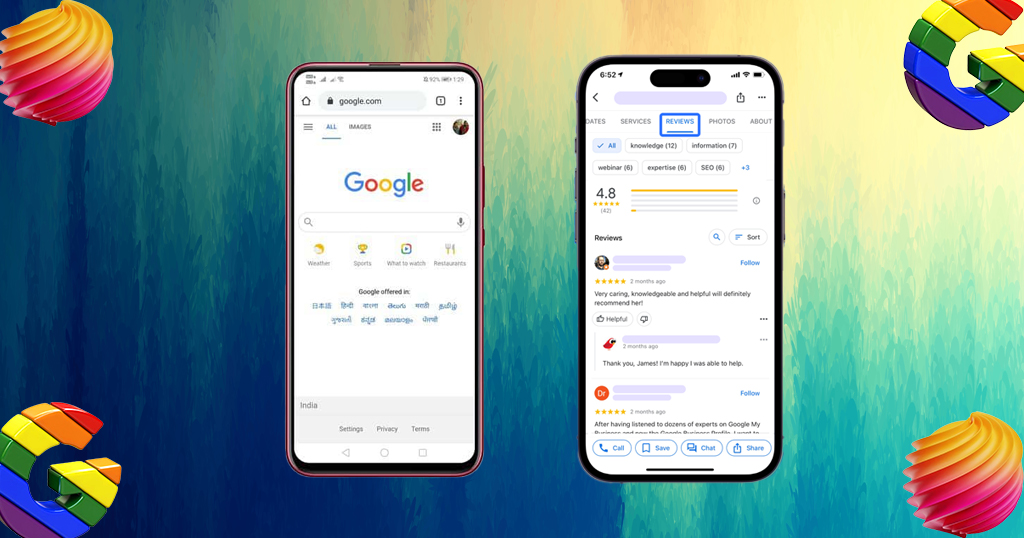
- Look for the “Reviews” tab on your Google Business Profile panel, or open Google Business Profile Manager directly if you manage the listing through a verified account.
- From there, you can see every rating or review left for your business, filter by star rating, and reply directly underneath each one.
If your profile doesn’t show up at all, or shows the wrong reviews, double-check that you’re signed in to the Google account that’s actually verified as the owner. This is a surprisingly common mix-up, especially for businesses with more than one manager or location.
Where Are My Google Reviews If I Manage Multiple Locations?
This is where things get messy fast. Each location typically has its own separate review feed inside Google Business Profile Manager, which means checking five locations means logging into five separate dashboards, unless you’re using a tool built to pull them into one view. A centralized reputation management dashboard solves exactly this problem by surfacing every location’s reviews and customers’ feedback in a single place instead of one at a time.
Option 2: Find the Reviews You Wrote on Google Maps
If you’re looking for reviews you’ve written as a customer, not reviews about your business, here’s how to find your reviews:
- Open Google Maps (web or app) and sign in with the Google account you used to write the review.
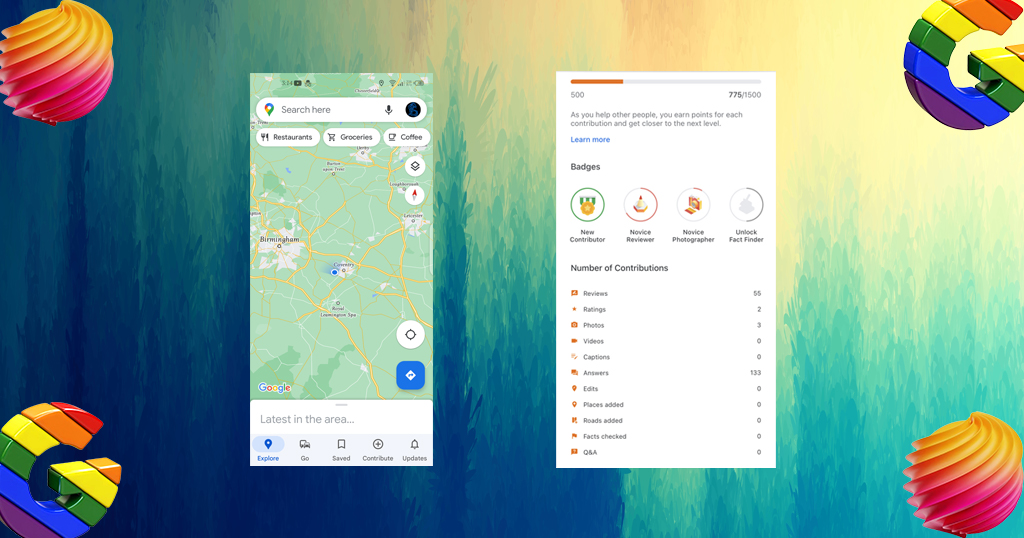
- Tap your profile photo, then go to “Your contributions” or “Reviews.”
- You’ll see all the reviews you wrote on Google Maps, along with the star rating and date for each.
You can also get there through Google Search: search “my reviews” while signed in, and Google will often surface a direct shortcut to your contributions page.
Checking Your Google Reviews on Mobile vs. Desktop
The steps are the same in spirit, but the screens look different depending on where you’re checking from.
On Mobile (Google Maps App)
- For reviews you wrote: open the Google Maps app, tap your profile photo, then “Your contributions” and “Reviews.”
- For your business’s reviews: open the Google Business Profile app (or the Maps app if you manage your listing through Maps) and tap the Reviews icon on your business dashboard.
On Desktop (Browser)
- For reviews you wrote: go to Google Maps in a browser, click your profile photo at the top right, then “Your contributions.”
- For your business’s reviews: run a Google search for your business name. The Business Profile panel on the right side of the results includes a direct Reviews tab.
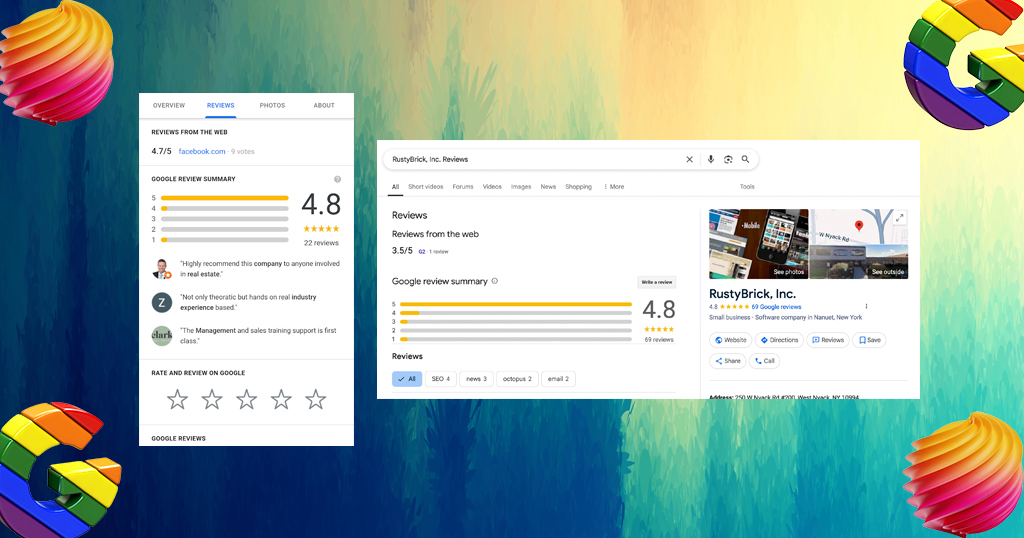
If you manage your listing day-to-day, the mobile Business Profile app tends to be faster for quick replies between tasks. The desktop view is easier when you’re doing a deeper weekly review of trends across multiple reviews at once.
How to Write a Review on Google Maps
Want to leave a review for a place you visited? It only takes a minute:
- Open the Google Maps app and search for the business.
- Tap the “Reviews” tab, then “Write a review.”
- Tap the stars to choose your rating.
- Add a few details about your visit (and photos, if you like), then tap “Post.”
Once you post, your review is added to Google Maps and appears on the business’s profile. High-quality reviews that mention specifics, like what you ordered or how the staff helped, are the most useful to other customers. Google also has a step-by-step guide to adding, editing, and deleting Google Maps reviews.
How to Get a Direct Link to Your Google Review Page (For Business Owners)
This is one of the most useful things to set up if you’re actively trying to collect more reviews. Every Google Business Profile has a unique, shareable review link that takes customers straight to the “leave a review” screen, skipping the extra step of searching and scrolling to find it.
To find yours:
- Search your business name on Google.
- Click “Ask for reviews” on your Business Profile panel (or find this option inside Google Business Profile Manager).
- Copy the generated link and share it via text, email, receipt QR code, or a follow-up message after a visit or order.
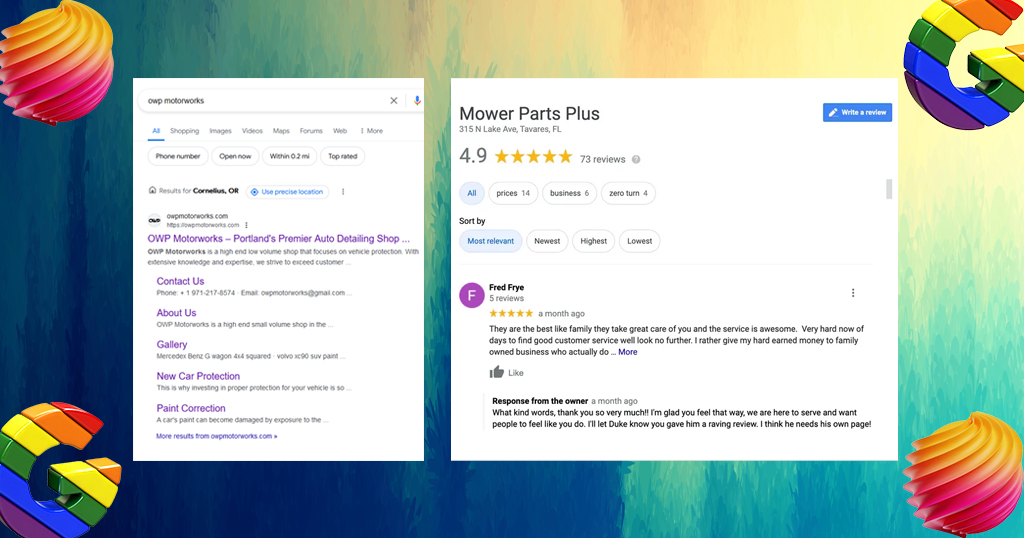
This single link is often the highest-leverage thing you can do for review volume. It removes nearly all the friction between “I had a good experience” and “I’ll leave a review.”
How to Edit or Delete a Google Review
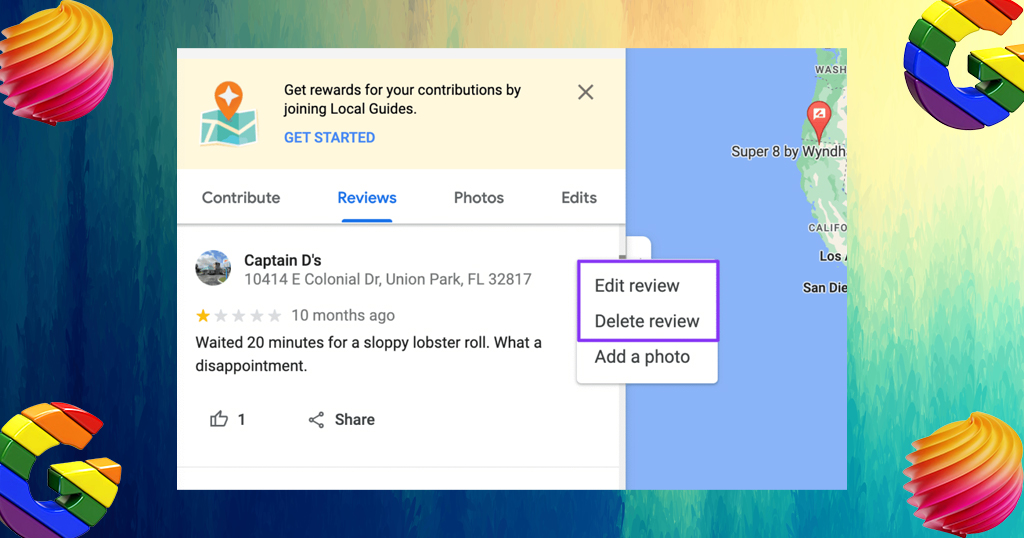
If it’s a review you wrote: open Google Maps, go to “Your contributions” and then “Reviews,” tap the three-dot menu next to the review, and choose edit or delete (here’s Google’s official walkthrough). If you want to delete Google reviews you no longer stand behind, this is the only path, and a deletion is permanent.
If it’s a review on your business that you didn’t write: you can’t delete someone else’s review yourself, even if it’s unfair. You can respond publicly, and if the review contains inappropriate content or violates Google’s policies (spam, hate speech, fake content, conflict of interest), you can flag it for removal using Google’s official review management guidance. Google reviews the report on their end. There’s no business-side edit or delete button for other people’s reviews.
How to Respond to Your Google Reviews
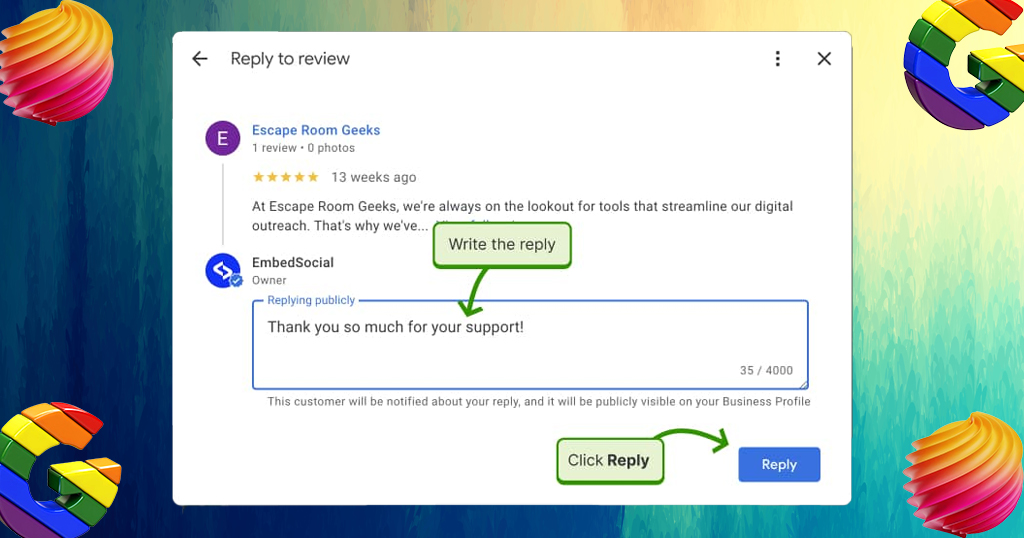
Once you can see your reviews, replying is the next step, and it matters more than most owners realize. A reply shows potential customers that a real person is managing the profile, not just collecting stars passively. It’s also the best way to handle negative reviews: a calm, specific, professional response often does more for your reputation than the review itself does against it.
If you want ready-to-use wording instead of starting from scratch every time, we put together a full set of Google review response examples and templates covering five-star praise, mixed feedback, and negative reviews. All of them are copy-paste ready. Google also publishes its own tips for replying to reviews, including personalizing each reply and using the reviewer’s name.
Common Reasons Your Google Reviews Might Not Be Showing Up
A few things that quietly cause “missing” reviews:
- You’re signed in to the wrong Google account, especially common if multiple people manage the same business listing.
- The review was recently posted and Google’s system hasn’t finished processing it yet (this can take a few hours).
- The review was removed by Google for violating content policies, without notifying you directly.
- You’re checking the wrong listing. Duplicate Google Business Profiles sometimes get created for the same business, splitting reviews across two pages.
If you suspect a duplicate listing is splitting your reviews, search your business name plus your city and check whether two separate profiles appear. Merging duplicates through Google Business Profile support is the fix.
The Bottom Line
Whether you’re hunting down reviews about your business or the reviews you wrote on Google Maps, the path is usually just a few clicks once you know where to look. The bigger opportunity is what you do next: sharing your review link to make leaving feedback effortless, and replying consistently once reviews start coming in.
If you’re managing this across multiple locations, Storefries centralizes review monitoring, responses, and your Google Business Profile listings in one dashboard instead of several. Check out our pricing plans, or browse more guides on the Storefries blog.
Quick FAQ:
1. How do I see all the reviews on my business profile?
Search your business name on Google, open the Google Business Profile panel, and click the Reviews tab. Or use Google Business Profile Manager if you manage a verified listing.
2. How do I find my reviews if I wrote them myself?
Open the Google Maps app, tap your profile photo, and go to “Your contributions,” then “Reviews” while signed in to the Google account you used to post them.
3. How do I write a review on Google Maps?
Open the Google Maps app, find the place, tap “Write a review,” tap the stars to set your rating, add your comments, and post.
4. Can I delete a bad review someone left about my business?
Not directly. You can respond to it, or report it to Google if it violates their review policies (for example, inappropriate content or spam). You can’t delete someone else’s review yourself.
5. Is there a direct link I can send customers to leave a review?
Yes. Every Google Business Profile has a shareable review link, accessible through the “Ask for reviews” option on your profile or inside Business Profile Manager.
6. Why don’t I see a review I know was posted?
It may still be processing (this can take a few hours), it may have been removed for violating Google’s policies; or you might be checking a duplicate version of your business listing.




Leave A Comment